
In this post we will explain how to upload GL Accounts on SAP S4 HANA. We will first download the template to upload GL Accounts on SAP S4 HANA. Then We will complete the template with our GL master data. Finally we will upload GL Accounts on SAP S4 HANA.
Besides this we will create all the main GL accounts manually so that we will not be dependent on the upload.
What you will learn: this guide covers the supporting G/L configuration, a release-specific mass-migration route, extension of accounts to another company code, and manual creation of logistics-relevant accounts used in MM–FI and SD–FI integration. The account numbers and organisational units in the screenshots are training examples; in a project, use the chart of accounts design, company-code assignments and account-determination rules approved for your landscape.
A G/L account has more than one level of master data. Chart-of-accounts data defines attributes shared by company codes using that chart, while company-code data controls settings such as account currency, sort key, field status and open-item behaviour. For primary cost/revenue and secondary-cost accounts, controlling-area-specific data can also be relevant. This distinction matters during migration because an apparently complete row can still fail if a required organisational view is missing.
Test master-data changes outside production
Create and validate G/L accounts in a Sandbox, Development or other authorised configuration environment first. Confirm transports, authorisations, account-determination dependencies and reconciliation results before introducing finance master-data changes into production.
Time needed: 5 minutes
How to Upload GL Master in 5 Minutes in Three Easy Steps
- Step 1-Preparing Template to upload GL Account
1.1)-Create Account Group
1.2)-Single GL Account Creation to Check Errors in Configuration
1.3)-Defined Retained Earning Account - Step 2-Uploading Completed GL Account Template to PA10 Company Code
2.1)-Starting S4 HANA Data Migration Cockpit.
2.2)-Create Controlling Area (PPIN – PP INC Controlling Area)
2.3)-Assigning Controlling Area (PPIN) to Company Code (PA10 & PP10) - Step 3-Extension of GL Accounts to PP10 Company Code
Extension of all loaded GL accounts from PA10 to PP10 through FS15
- Appendix – Creating main GL Accounts manually
Before having an overview of all the 3 steps involved in Upload GL Master in 5 Minutes in Three Easy Steps, let’s first have a glance of the pre-requisite configurations and related post.
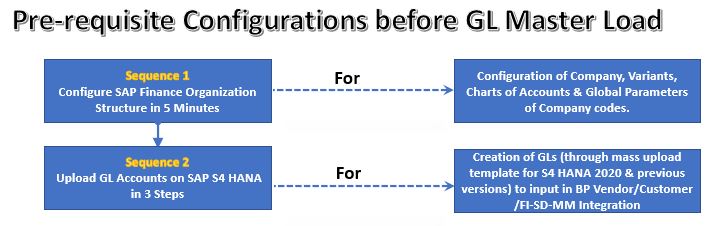
Link to Pre-requisite Configuration post is given below
Complete the Finance organisation prerequisites
Before loading the G/L master, confirm the company codes, chart of accounts and controlling design used by the migration scope. Use the related Configure SAP Finance Organization Structure in 5 Minutes guide as the companion walkthrough.
Once we have completed all the above configurations, we are ready to upload GL Master in S4 HANA
Let’s now look in detail, how to Upload GL Master in 5 Minutes in Three Easy Steps
Step 1 : Preparing Supporting Configuration to upload GL Accounts
In this post we will first prepare template to load GL master data on SAP S4 HANA. After that we will load the prepared file onto SAP S4 HANA.
Mark my words. This is going to be a very exciting journey. Let’s start it !
1.1 Create Account Group
To create/load the GL master we need to create account groups for our GL accounts. SAP account groups are used to maintain intervals, segregate G/L accounts groups, and define field statuses. SAP account group has a four-digit alphanumeric code and serves for organization of G/L account master data based on specifications on how G/L account master data to be defined.
For project design, treat the account group as a governance control rather than only a numbering bucket. Check that the permitted account-number interval supports the planned chart, and review which master-data fields are suppressed, optional or required. If the migration template contains a value for a field suppressed by the target configuration—or omits a field made mandatory by the account group—the load can fail or create inconsistent master data.
Also confirm the G/L account type before mass creation. In SAP S/4HANA, the account type influences whether the account behaves as a balance-sheet account, non-operating expense/income account, primary cost or revenue account, or secondary-cost account. That choice affects downstream posting and, for cost-relevant accounts, Controlling integration.

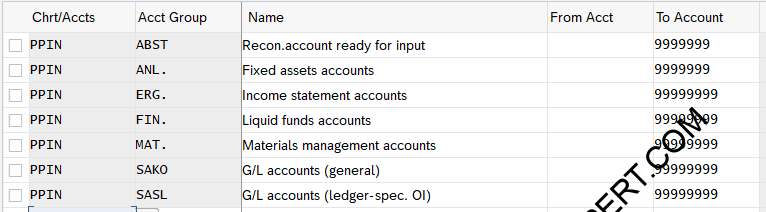
Below Account Groups are created for PPIN Chart of Accounts
| Chrt/Accts | Acct Group | Name | From acct | To account |
| PPIN | ABST | Recon.account ready for input | 9999999 | |
| PPIN | ANL. | Fixed assets accounts | 9999999 | |
| PPIN | ERG. | Income statement accounts | 99999999 | |
| PPIN | FIN. | Liquid funds accounts | 99999999 | |
| PPIN | MAT. | Materials management accounts | 99999999 | |
| PPIN | SAKO | G/L accounts (general) | 99999999 | |
| PPIN | SASL | G/L accounts (ledger-spec. OI) | 99999999 |
1.2 Single GL account creation to check errors in Supporting configuration
Now let’s first create a single GL account to iron out any error before proceeding for mass upload of GL account
Why the single-account test is valuable
A controlled FS00 test is an efficient pre-flight check in SAP S/4HANA on-premise or private-edition landscapes where the transaction is available. It can expose missing chart-of-accounts settings, retained-earnings configuration, field-status conflicts and authorisation issues before hundreds of records are submitted through the migration tool.
Insert T-code “FS00” on SAP easy access screen
try to create a demo GL “12345678” in Co.Code PA10
Got below error
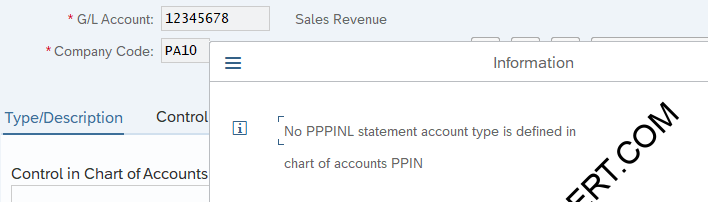
let’s analyse where the issue is , just click on “?” on the above message and further click on “Customizing” icon as shown in below screen
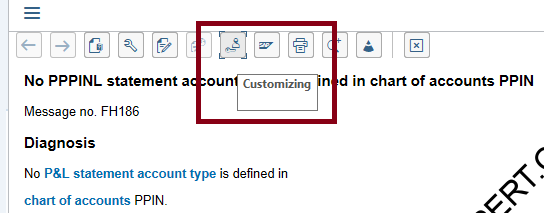
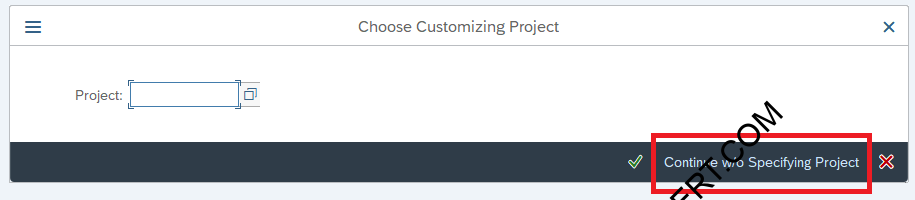
Click on “Continue w/o Specifying Project”
Now system is telling us that issue is- We did not define Retain earning account
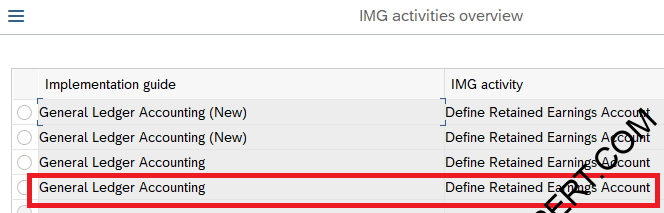
Retained Earnings Account is used to carry forward the balance from one fiscal year to the next fiscal year. You can assign a Retained Earning Account to each P&L account in the chart of accounts (COA). To automatically carry forward the balance to the next fiscal year, you can define P&L statements as per COA and assign them to the retained earning accounts.
The important design point is that P&L balances are not carried forward as normal balance-sheet balances. At fiscal year change, the system uses the retained-earnings assignment to transfer the accumulated result. Therefore, a missing or incorrect retained-earnings setup is a chart-of-accounts issue that should be resolved before mass creation of P&L accounts.
Do not ignore warnings indiscriminately
The screenshot sequence shows a warning that the retained-earnings G/L does not yet exist. Treat that as acceptable only when the account is deliberately planned and will be created as part of the controlled setup. In a real project, document the intended retained-earnings account, create it in the correct chart/company-code scope, and validate the year-end design with Finance before go-live.
1.3 Define Retained earning account

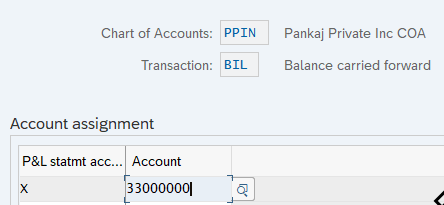
Note : You can defined GL account while GL accounts are yet to be created. System will warn you that “GL does not exist” just ignore and proceed.
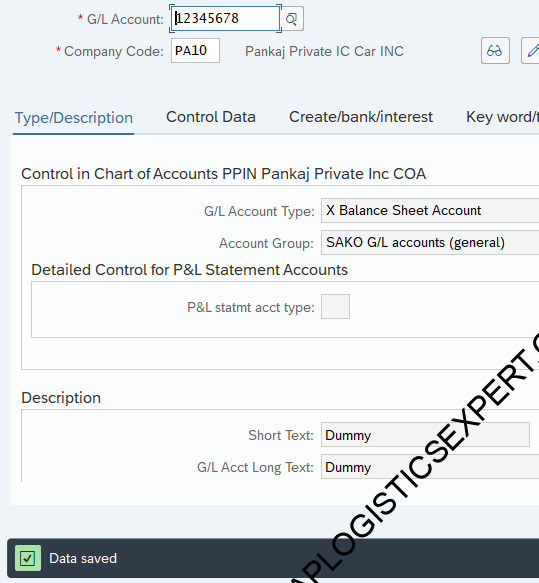
Now again try to create our dummy GL account to look for any error in GL creation.
We have successfully created our Dummy GL , this indicates there is no error in configuration now and we are ready for mass creation of GL account
Step 2 : Downloading & Uploading Completed GL Account Template
2.1 Downloading S4 HANA GL Account Master Upload Template
We need to first down load the template for GL account master through S4 HANA Migration Cockpit (LTMC)
Release check: LTMC is now deprecated
The following LTMC screenshots are retained because they remain useful for older SAP S/4HANA projects and for understanding the original article. For current SAP S/4HANA releases, SAP states that transaction LTMC is deprecated and can no longer be used to migrate data. Use the Fiori Migrate Your Data – Migration Cockpit app instead; Appendix 1 below explains the current route.
2.1.1 S4HANA Data Migration Cockpit (LTMC).
There are several advantages of the S4HANA Migration Cockpit over LSMW, like- no need to create source structures, target structures and mappings, No screen recording, facility to download user friendly templates, Error details etc.
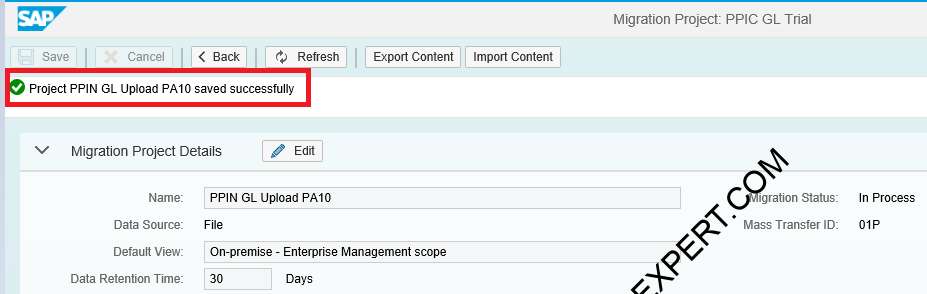
Go to LTMC and create a new project “PPIN GL Upload PA10”
Select Migration Object as “GL” and click on download template
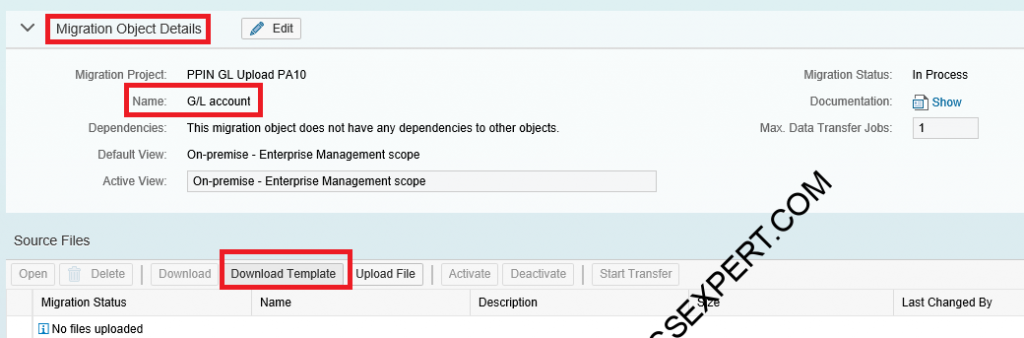
Download the template and filled your GL data. Our completed file for PPIN COA is given below. You can reference this to create your own GL master. Please feel free to contact if you need guidance on any stage of the data load.
2.2 Complete the Template with GL account Master Data
We have completed the GL master for our Company code PA10 & Charts of account PPIN
Before upload, run a data-quality review. Check account numbers and account groups, chart-of-accounts and company-code assignments, account type, descriptions and languages, currency settings, tax category, open-item management, line-item display, field status group, sort key, reconciliation-account flags and any controlling-area fields required by the migration object. Validate duplicates and leading zeros as well; spreadsheet software can silently reformat account identifiers if columns are treated as numbers.
For accounts used in automatic account determination, master-data creation is only one part of the solution. The account must also be correctly referenced by the relevant integration configuration—for example MM valuation/account determination or SD revenue account determination—and the account attributes must support the intended postings.
2.2.1 S4 HANA 1809/1909
For S4 HANA 1809/1909 please download the completed GL master from the below download button
2.1.2 S4 HANA 2020
For S4 HANA 2020 please download the completed GL master from the below download button
Training workbook for the 2020 example
The original training file is retained here: PPIN-GL-Master-S4-HANA-2020 — Download. Use it as a learning example only. Always download the migration template generated for your own SAP S/4HANA release and migration object, because fields, structures and supported account types can change by release.
Upload the filled Template
Upload the file click on “Activate” and then on “start Transfer”


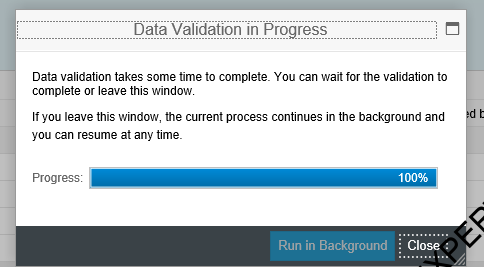
System will validate the data as shown below
system will ask you to confirm mapping values. Select all line and click on Confirmed Mapping Values as shown in below screenshot
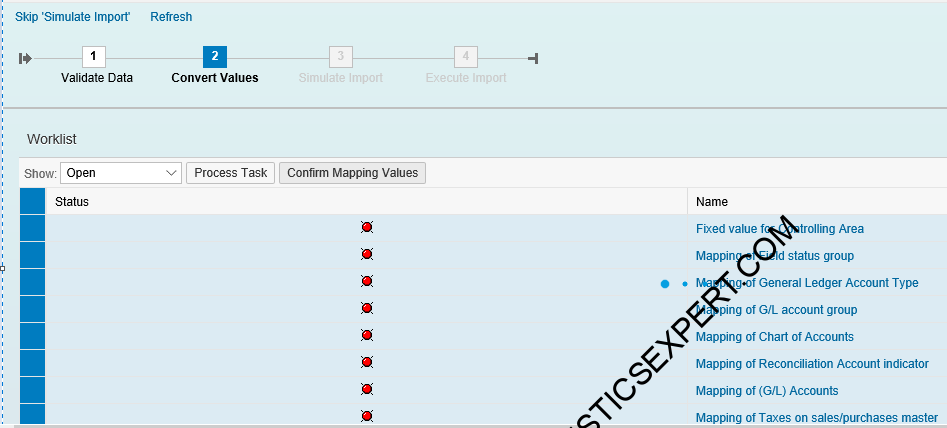
All error gone leaving one for “Controlling Area”. We did not create Controlling area yet. It is mandatory to load GL account. Let’s check our template
Release qualification: do not generalise this screenshot into a rule that every G/L account always needs controlling-area data. The mandatory fields depend on the migration-object version and the account type. Cost- and revenue-relevant accounts may require controlling-area-specific information, whereas pure balance-sheet accounts follow a different data pattern. Use the object documentation generated for your release as the authority for required sheets and fields.
When a mapping or validation error remains, diagnose it in this order: first identify the exact source field and target value; then confirm that the target organisational object exists; check whether the value mapping is confirmed; verify that configuration permits the value; and finally re-run simulation before migration. Avoid changing configuration merely to make a template pass unless the design itself has been approved.
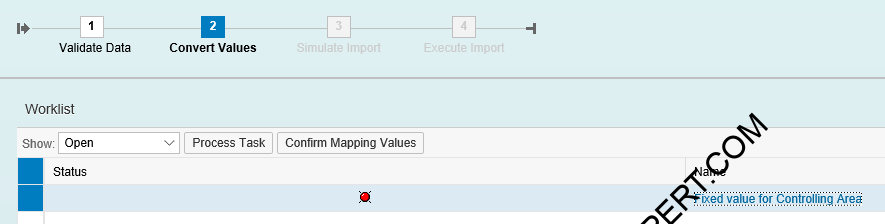
Resolve the organisational prerequisite
For the training scenario, create and assign the required Controlling structure before rerunning the migration. The related Configure SAP FI Org Structure in 5 Minutes post shows the site’s companion setup example.
Now input this new controlling area value in our S4HANA migration cockpit and continue loading GL master
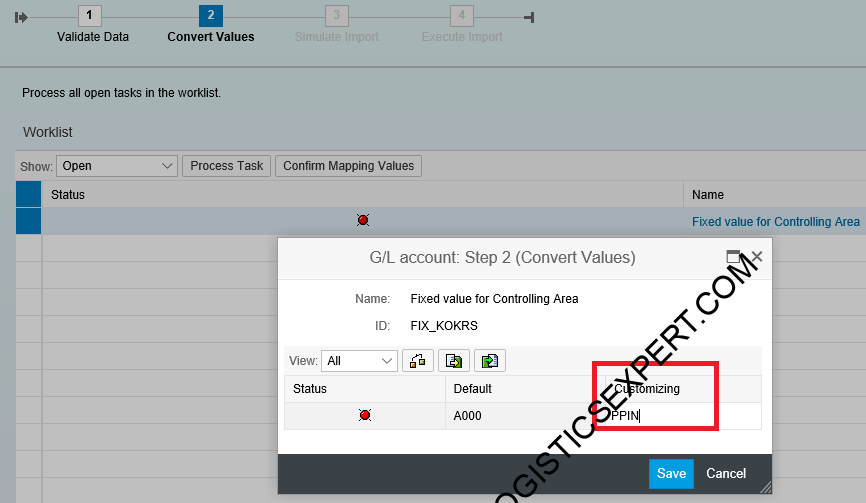
Now all errors gone 🙂
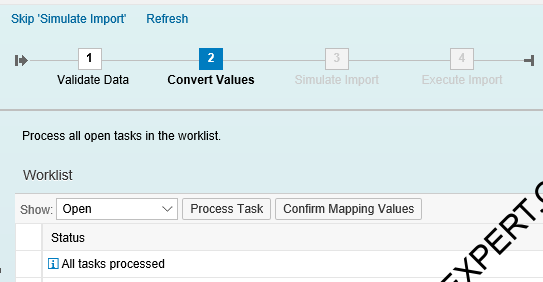
All GLs are uploaded successfully in company code PA10
Now we will extend these GLs to our other company code PP10
Step 3 : Extension of GL Accounts to PP10 Company Code (FS15)
Input the data as shown in the below screenshot
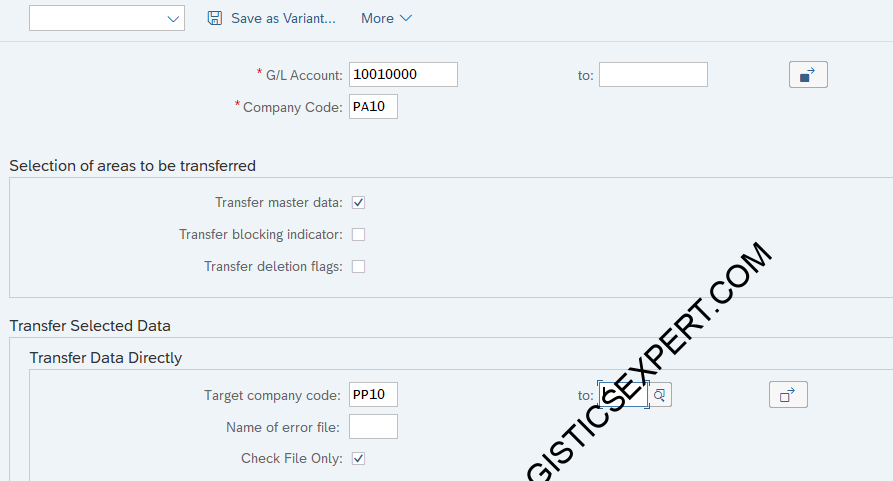
System is checking and extending GL codes to PP10 company codes
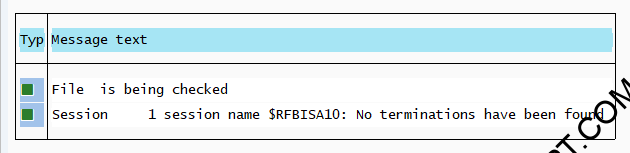
Now all the GL accounts are extended to Company code PP10
After extension, verify both the chart-of-accounts view and the company-code-specific view. A successful copy does not prove that every target-company-code attribute is suitable. Review account currency, open-item management, tax settings, field status group, sort key, reconciliation-account behaviour and any local requirements before posting test documents.
Current Fiori alternative for mass copy
In current SAP S/4HANA releases, the Manage G/L Account Master Data (F0731A) app supports mass copy of G/L accounts within the same chart of accounts in Company Code View. Availability and change rights depend on deployment model, role and system landscape, so treat FS15 as an on-premise/private-edition transaction path rather than a universal instruction.
SAP documentation: legacy and current migration cockpit
The original SAP Help destination is retained as legacy LTMC documentation. For current releases, use SAP’s LTMC deprecation notice and the successor Migration Cockpit documentation.
Appendix 1 : Migration of GL accounts through App
For the new versions of SAP S4 HANA, upon running of LTMC , we receive the below error
--> It is no longer possible to migrate data using transaction LTMC. It is still possible to display existing projects, but new projects cannot be created.
You can use the app Migrate Your Data – Migration Cockpit to migrate data to SAP S/4HANA. You can access this app in the Fiori launchpad.
Current SAP S/4HANA Migration Cockpit workflow
For current SAP S/4HANA on-premise releases, open the Fiori app Migrate Your Data – Migration Cockpit (app ID F3473). SAP supports migration through staging tables and, for supported source systems, direct transfer. For a file-based G/L load, the staging-table approach is the closest successor to the older template-driven LTMC process.
Continue with the site’s current Migration Cockpit walkthrough
For screenshots of the successor Fiori process and a worked G/L migration example, continue with Migrate Your Data – Migration Cockpit to SAP S/4HANA. Use the current SAP Help references in this article to verify any release-sensitive field, service or migration-object behaviour before implementation.
1. Create the project and select the G/L account migration object. Review the object documentation for your exact release before designing the source file. SAP identifies the on-premise migration object technically as S4_FI_GL_ACCOUNT_MASTER in relevant releases; supported account types and structures are release-dependent.
2. Load the source data and prepare the object. Use the template generated for the project or another supported method to populate the staging tables. Preserve field formats and do not reuse an old workbook merely because the column names look similar.
3. Process mapping tasks. Resolve value mappings and fixed-value mappings for organisational units, account attributes and other coded values. Unconfirmed mappings are a common reason why an otherwise valid spreadsheet cannot proceed.
4. Simulate before migrate. Simulation is a control point, not a cosmetic step. Review messages by severity and correct the source data or approved configuration before executing the final migration.
5. Migrate and validate. After the run, use migration logs and the Data Migration Status app where supported. Then reconcile the migrated account population against the source file and inspect representative accounts in the G/L master-data app or FS00, depending on your deployment.
Official SAP migration references
Use SAP’s current Migrate Your Data – Migration Cockpit documentation, the FI – G/L account migration-object documentation, and the Data Migration Status guidance for release-specific behaviour.
Let’s load the GL data through App migrate Your Data – Migration Cockpit to migrate data to SAP S/4HANA
Appendix 2 : Creating main GL Accounts manually
The manual examples below are intentionally practical, but the G/L numbers are not SAP-delivered universal accounts. They belong to the PPIN training chart used by this site. In a customer system, derive each account from the approved chart-of-accounts design and verify the automatic-account-determination configuration that points to it.
Account-determination keys are configuration context
Keys such as BSX, WRX, FR1, VAX, ERL, ERS, ERF, MWS and GBB describe integration logic, but the actual posting result depends on valuation class, valuation grouping, transaction/event key, account modifier, chart of accounts, sales account-assignment groups, tax configuration and other project settings. Never copy the example G/L numbers into a productive design without tracing the target system’s account determination.
There are 100s of GL accounts in the GL master used by a business. From logistics points of view only few are important which are used in MM-FI or SD-FI integrations etc.

In addition to the creation of GL master through upload as explained in the above post, we will create some chosen few GL through manual creation showing screenshots of the full process.
1. Vendor Master Recon Account
we will create account 221100000 named “PPIN-Payables Domestic” to use in the BP vendor master creation.
See the reconciliation account in BP/CVI
The related BP and CVI configuration example shows where a customer/vendor reconciliation account is used during Business Partner setup.
Start FS00
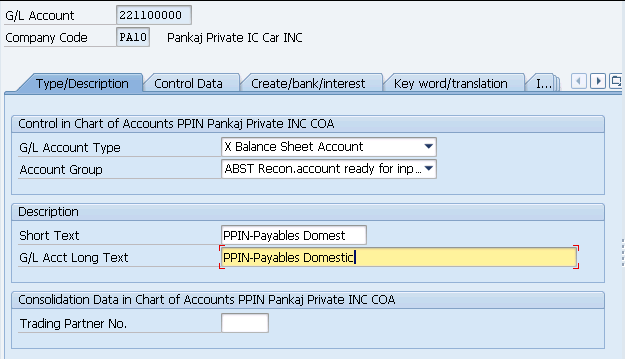
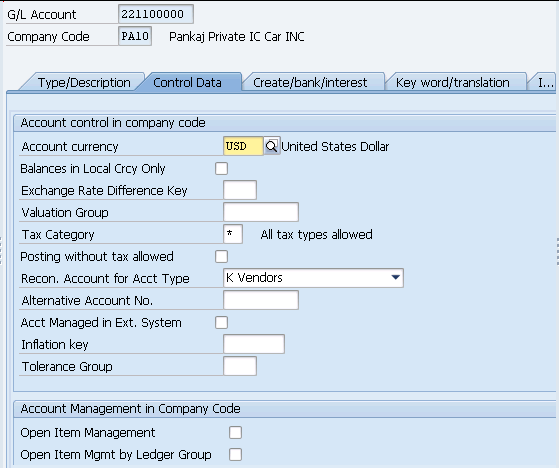
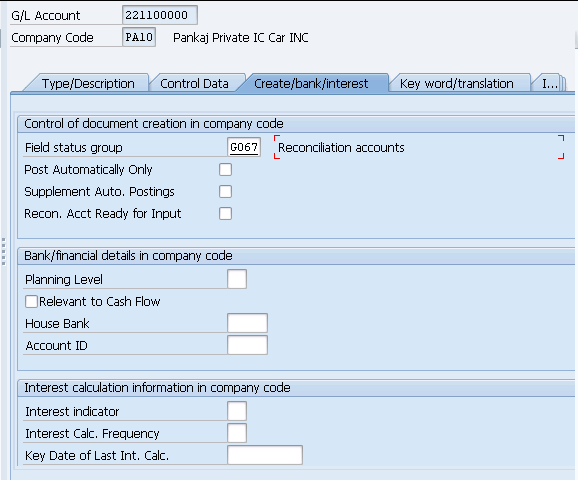
GL 221100000 created. Also extend the account to PP10 Co.code too through t-code FS15
2. Customer Master Recon Account
we will create account 112100000 named “PPIN-Receivables Domestic” to use in the BP customer master creation.
Customer reconciliation account context
The same BP and CVI configuration example illustrates the company-code financial data where the customer reconciliation account is maintained.
Start FS00
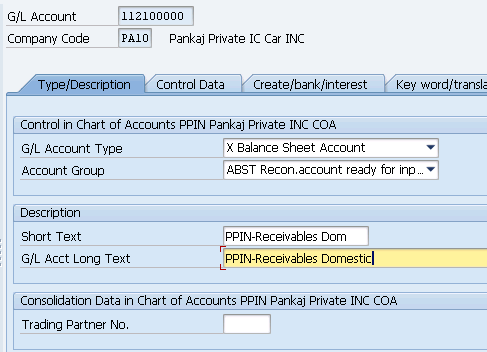
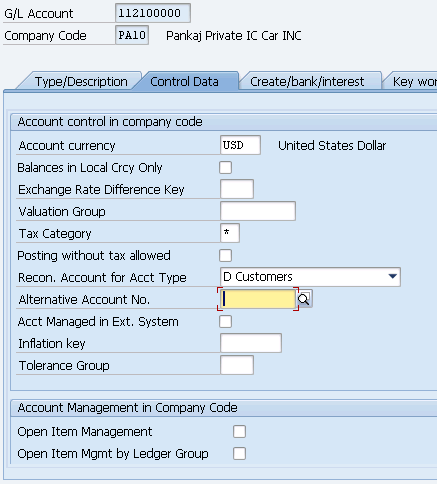
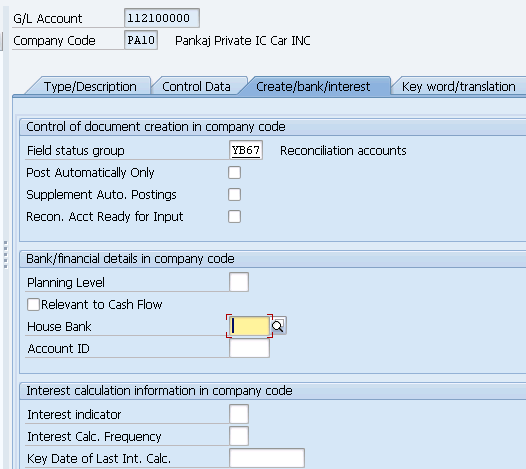
Also extend the account to PP10 Co.code too through t-code FS15
3. Inventory Posting Account (BSX)
BSX is used for all postings to stock accounts.
In automatic account determination, BSX is typically resolved from the chart of accounts, valuation grouping/valuation area and valuation class context. That is why the same business process can post to different inventory G/L accounts for raw materials, semi-finished products, finished products and trading goods. Validate the material master valuation class and OBYC design together with the G/L master.
3.1 Trading Goods (HAWA)
BSX posting is done on GL 113600000 (Inventory Trading goods)
Let,s create GL 113600000
Start FS00
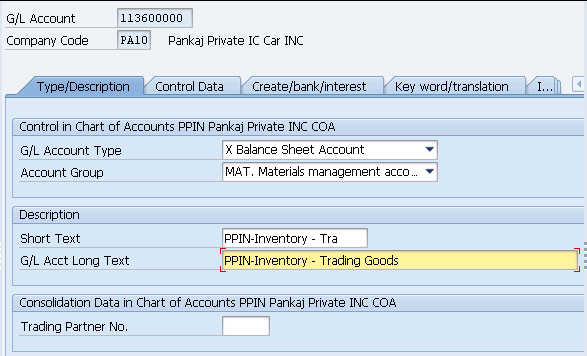
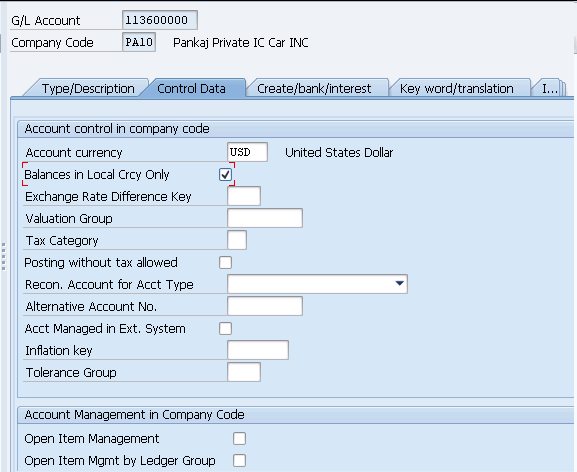
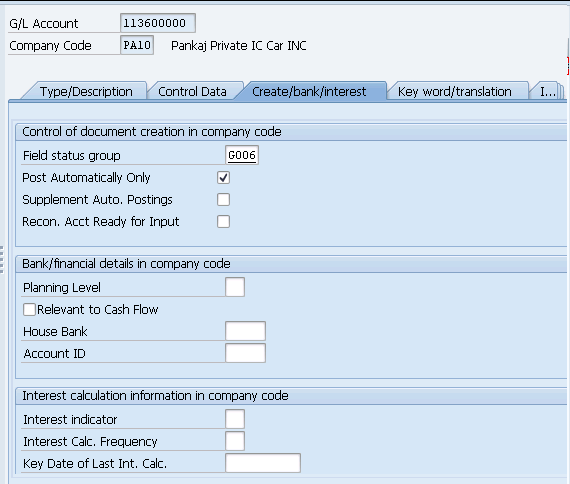
GL 113600000 (Inventory Trading goods) is created now.
Trace BSX to MM–FI account determination
Use the related MM–FI integration guide for BSX to see how an inventory G/L is reached through automatic account determination.
3.2 Raw Material (ROH)
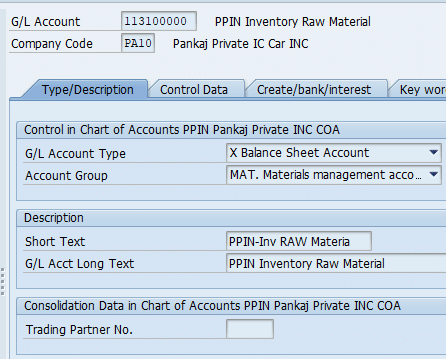
BSX posting is done on GL 113100000 (Inventory Raw Material)
Let’s create GL 113100000
3.3 Semi-Finished Material (HALB)
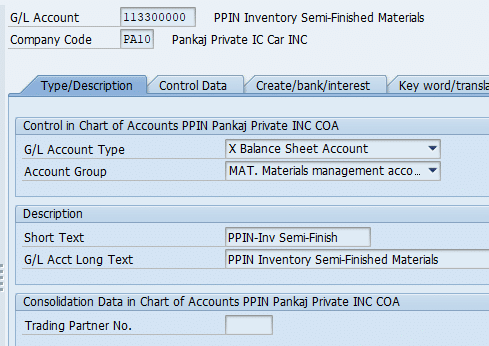
BSX posting is done on GL 113300000 (Inventory Semi-Finished Material)
Let’s create GL 113300000
3.4 Finished Material (FERT)
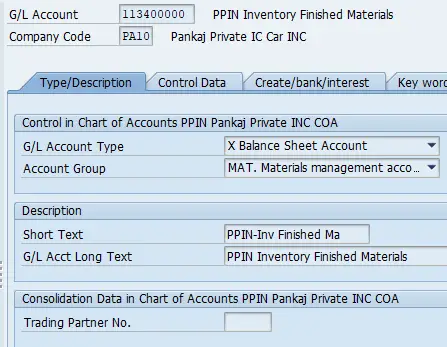
BSX posting is done on GL 113400000 (Inventory Finished Material)
Let’s create GL 113400000
4. WRX – GR/IR clearing account
When posting the goods receipts for standard purchase order, the stock account is debited (BSX account). The offsetting entry is posted to the GR/IR clearing account through the WRX key.
WRX is a clearing mechanism between goods receipt and invoice receipt. The account should be designed for reconciliation and operational clearing, and its open-item/line-item settings must match the Finance design. Investigate persistent GR/IR balances by tracing purchase order history and quantity/value differences rather than manually clearing unexplained items.
Note : The purchase order must not have an account assignment
Let,s create GL 221120000 PPIN-Goods Received/Invoice Received
start FS00
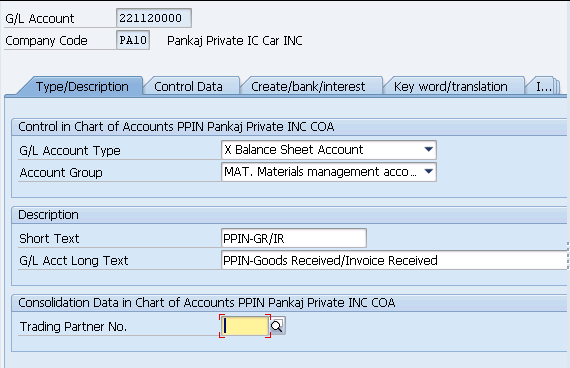
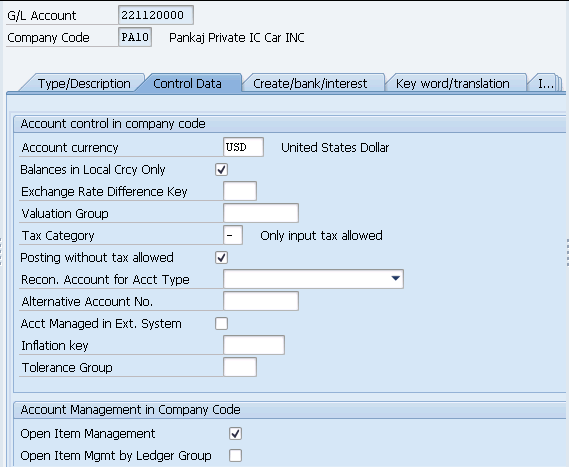
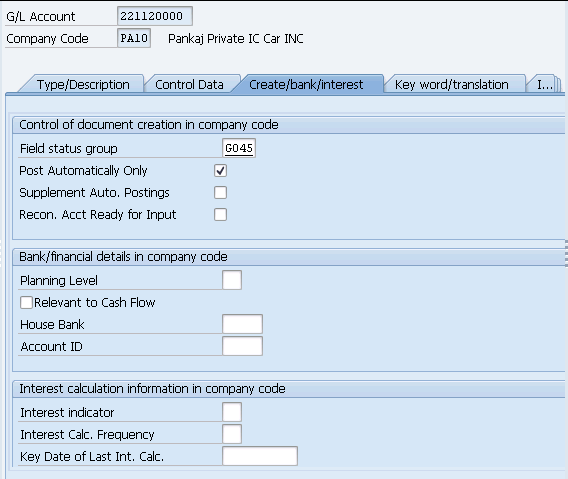
GL 221120000 PPIN-Goods Received/Invoice Received is created now.
Trace WRX to the GR/IR posting
The related MM–FI integration guide for WRX shows how the GR/IR clearing account is determined for procurement postings.
5. FR1-Freight Clearing Account
If our PO have been given Freight condition type (Example-Condition “FRC1”) so system will search corresponding GL to post it to FI
System is searching for Key FR1 because in our pricing schema for our car business we have used key FR1 for condition “FRC1”.
Please check the pricing schema from the link to the post given below
Review the pricing schema behind freight postings
The original companion resource, Ultimate Guide to MM Pricing in 5 Easy Steps, provides the pricing-schema context used by the FR1 training example.
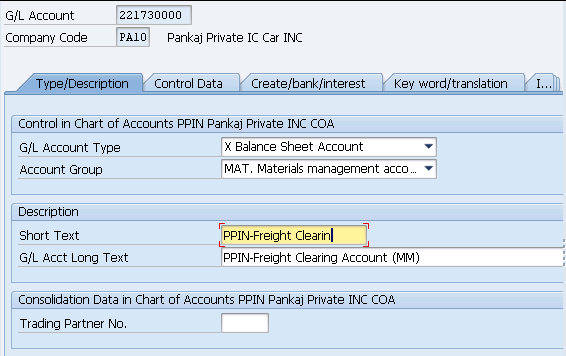
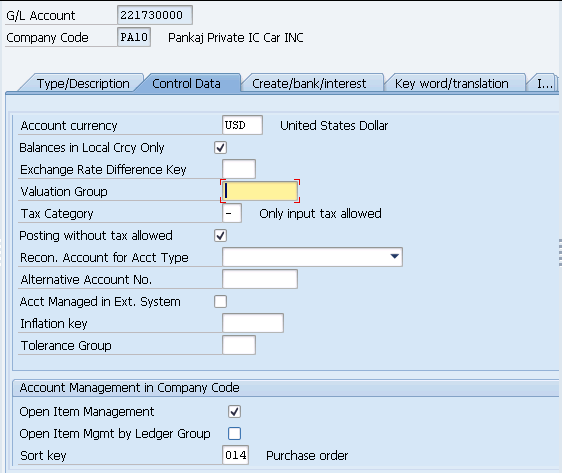
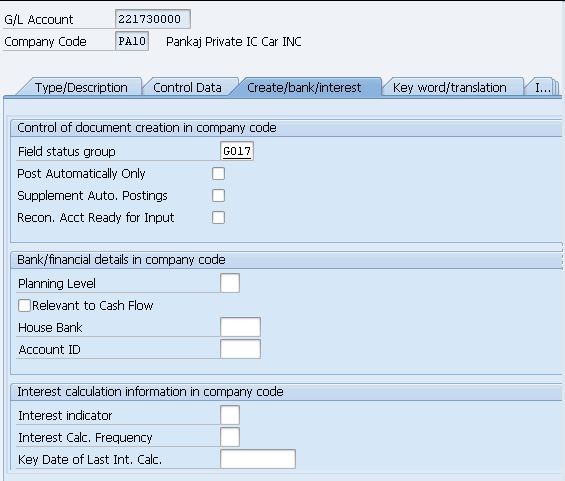
We will use GL 221730000-PPIN-Freight Clearing Account (MM)
Let,s create GL 221730000-PPIN-Freight Clearing Account (MM)
Start FS00
6. Company Code Clearing Account
If we want to do stock transfer between the plants belonging to different company codes then
- The transfer between plants is also a transfer between company codes.
- In this case, the system creates two accounting documents for the transfer posting. The stock posting is offset against a company code clearing account.
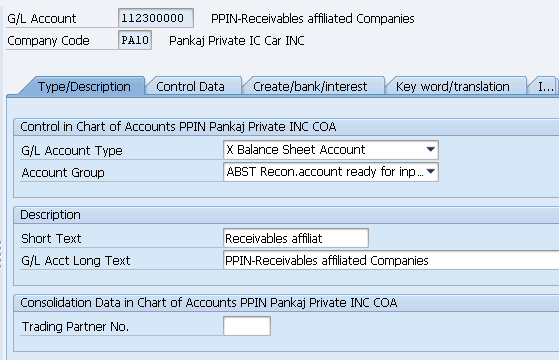
6.1 Receivables Affiliated Companies GL Account
We will first create receivable GL account.
Start FS00
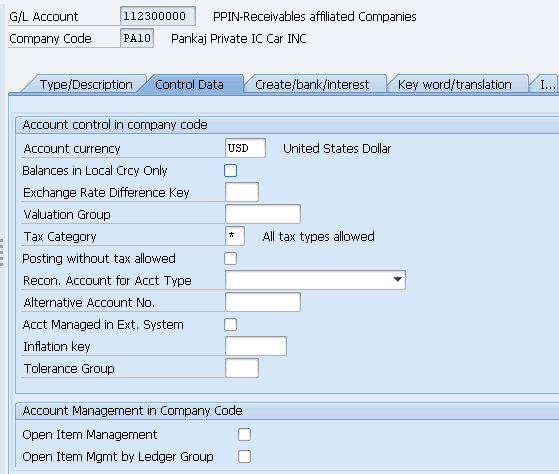
Extend the above account to other company code PP10 as shown in the previous point
6.2 Payable affiliated Companies GL Account
Start FS00
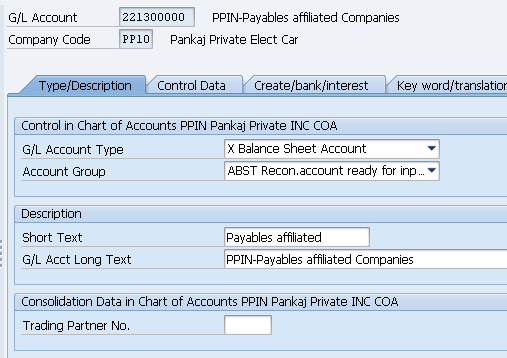
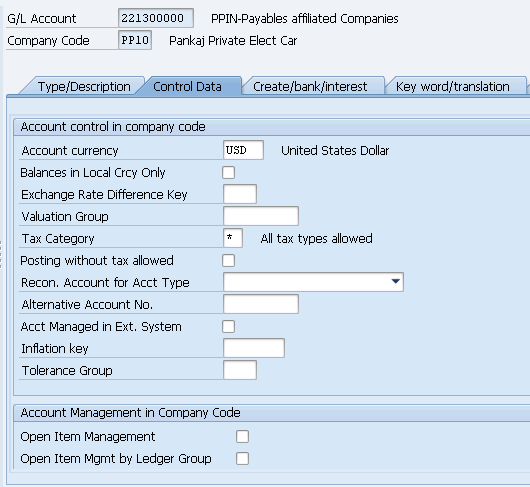
Extend the above account to other company code PP10 as shown in the previous point
7. VAX- Sales Orders Goods issue without account assignment object
We will use GL 550200000 (PPIN-Cost of Goods Sold (Trade w/o Cost Element).
Let,s create GL GL 550200000 (PPIN-Cost of Goods Sold (Trade w/o Cost Element).
Start FS00
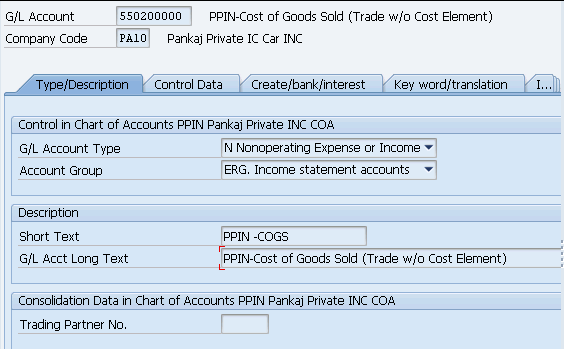
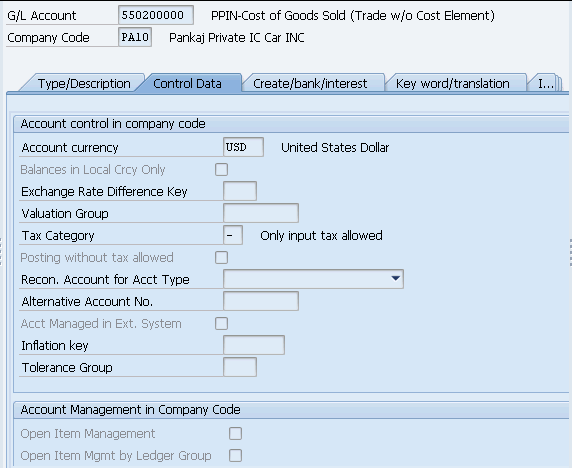
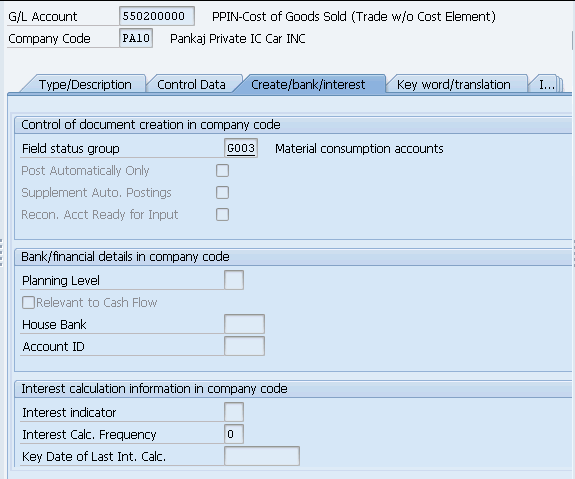
Save & GL 550200000 is created. Now extend this GL to PP10 company also.
8. ERL- GL for Domestic Revenue
We will create GL 441000000 – PPIN-Revenue Domestic – Product
Start FS00
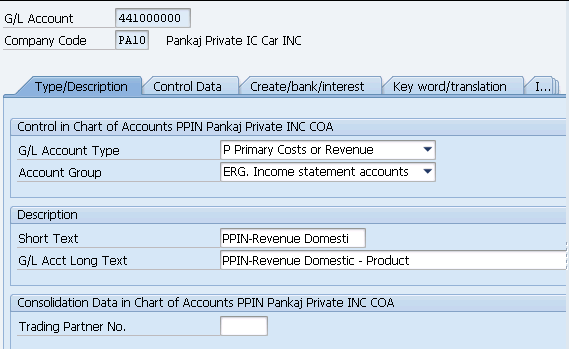
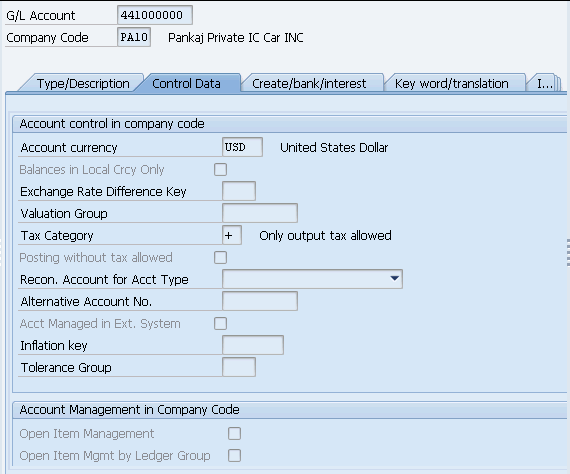
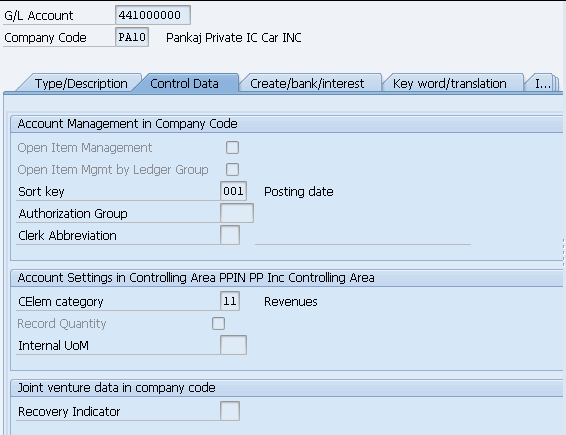
GL 441000000 – PPIN-Revenue Domestic – Product is created now.
We have extended it to company PP10 also through FS15
This account is used in revenue determination . Please see it use HERE
9. ERS- GL for Sales Discounts – Domestic
We will create GL 444002000 -PPIN-Sales Discounts – Domestic
Start FS00
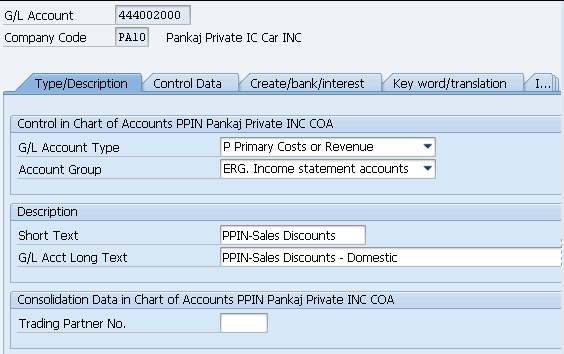
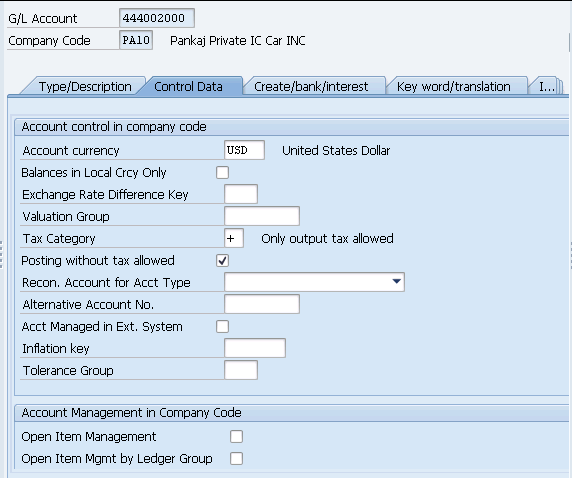
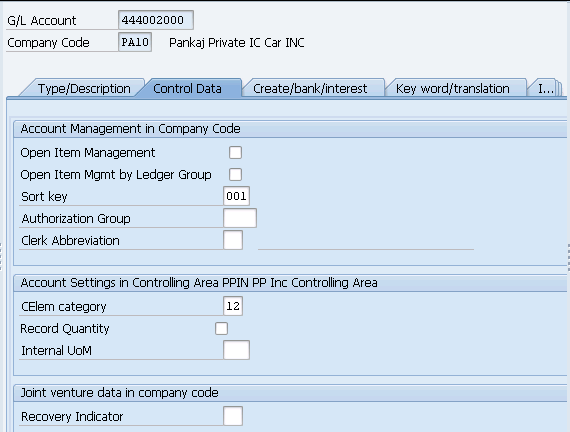
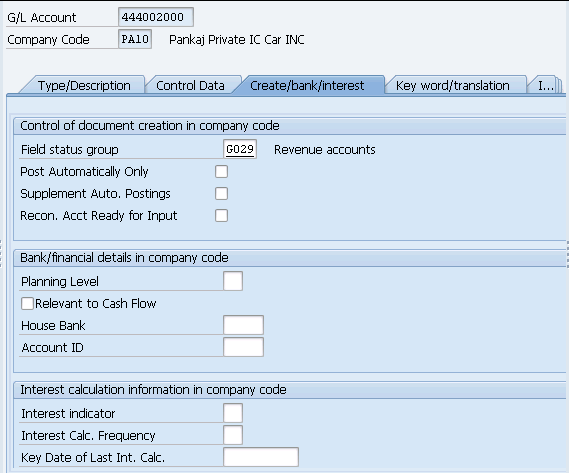
GL 444002000- PPIN-Sales Discounts-Domestic is created now.
We have extended it to company PP10 also through FS15
This account is used in SD revenue determination procedure. Please see it use HERE
10. ERF- GL for Freight Revenue – Recovery
We will create GL 552590000 -PPIN-Freight Revenue – Recovery
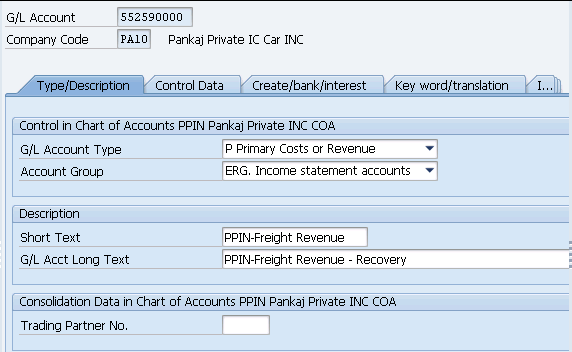

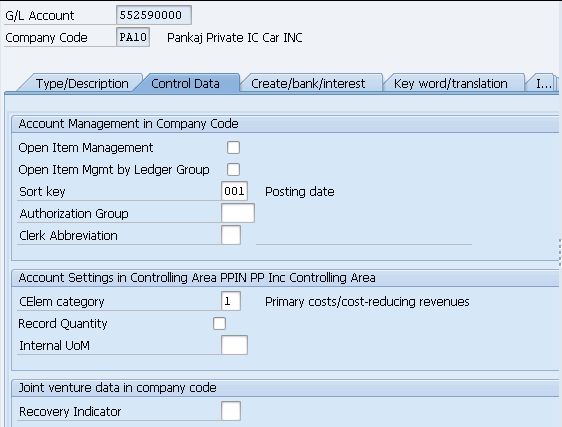
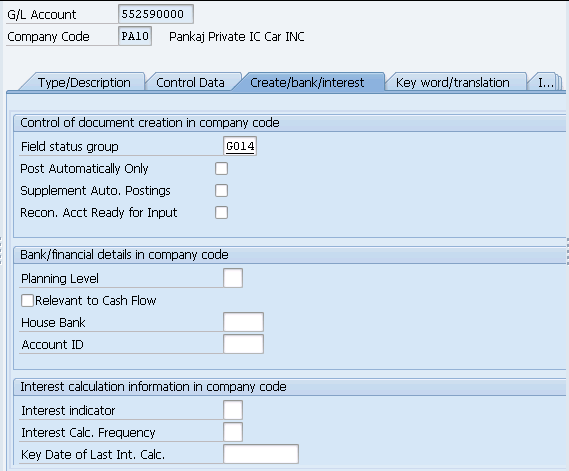
GL 552590000 -PPIN-Freight Revenue – Recovery is created now.
We have extended it to company PP10 also through FS15
This account is used in SD revenue determination procedure. Please see it use HERE
11. MWS-GL for Output Tax
We will create GL 222000000 – PPIN-Output Tax (MWS) to post the tax amount.
start FS00
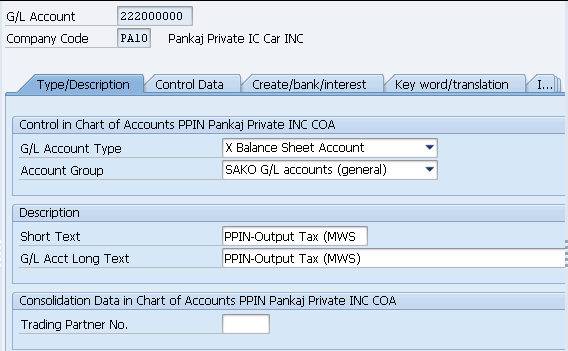
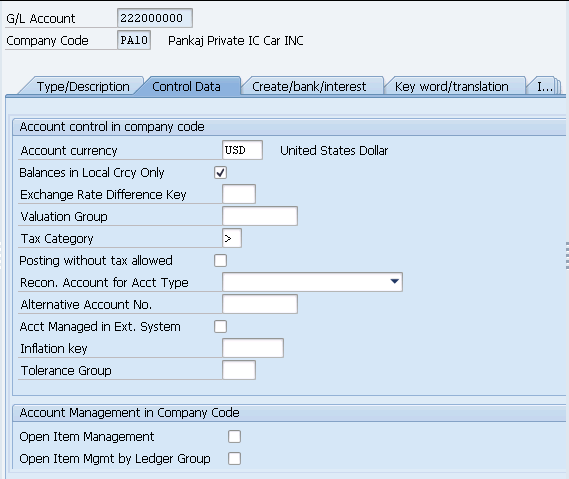
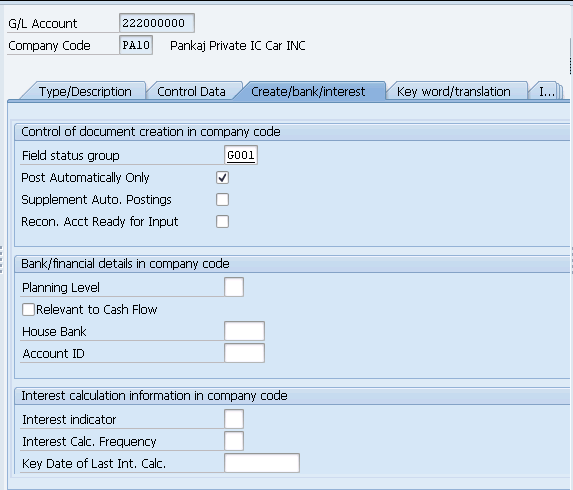
GL 222000000 – PPIN-Output Tax (MWS) to post the tax amount. is created now.
We have extended it to company PP10 also through FS15
This account is used in SD revenue determination procedure. Please see it,s use HERE
11. GBB/BSA-Initial Inventory Upload
We will create GL to post the initial inventory load.
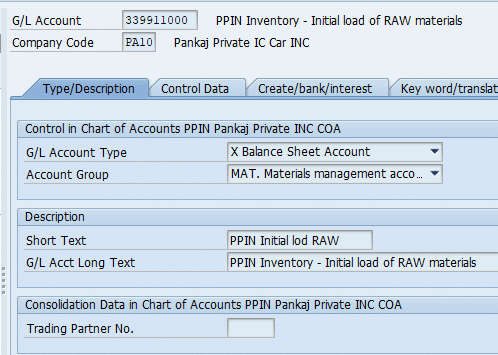
11.1 for RAW material & Returnable Packaging Material
We will use GL 339911000 for Raw & returnable packaging material initial upload.
11.2 For FG & SFG Material
We will use GL 339912000 for SFG & FG material initial upload.
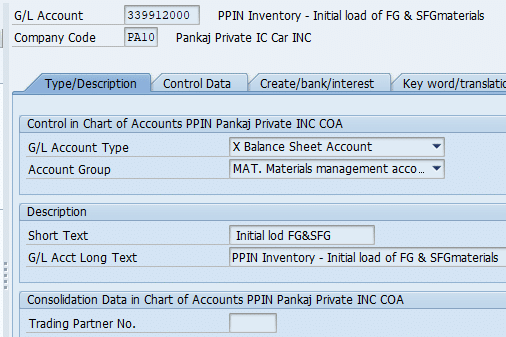
Image Courtesy : Logo vector created by catalyststuff – www.freepik.com
Post-migration validation and reconciliation
Do not stop at a green migration status. Reconcile the number of source accounts to the number created or extended, record rejected or skipped rows, and retain the migration log as implementation evidence. For a sample covering each account type, compare the chart-of-accounts, company-code and controlling-area views against the approved source workbook.
Then perform controlled posting tests for the integration-critical accounts. Typical checks include a goods receipt that hits BSX/WRX, invoice receipt clearing behaviour, customer/vendor postings to reconciliation accounts, an SD billing posting for revenue/tax determination, and—where relevant—an intercompany stock-transfer accounting flow. Confirm both the expected G/L numbers and the expected debit/credit direction.
Correction strategy: if an account was created with the wrong attributes, first determine whether the field can safely be changed after postings. Some master-data attributes become restricted once transactional data exists. If the migration created the wrong account number or structural design, do not attempt ad-hoc production fixes; assess reversal, blocking, replacement-account and transport implications with Finance and the solution architect.
Practical completion checklist
Before sign-off, confirm: migration/project logs are clean or explained; all expected company-code extensions exist; account descriptions and languages are correct; integration account determination points to the intended G/Ls; representative postings reconcile; authorisations permit required maintenance but not inappropriate production changes; and the final workbook, logs and approvals are retained for audit and support.


