SAP S/4HANA Migration Cockpit supports the controlled migration of business data through SAP-delivered migration objects. This guide combines practical SAP Gateway troubleshooting with an end-to-end example for loading G/L account master data through the Migrate Your Data – Migration Cockpit Fiori app.
Learner consultants can follow the screenshots as a working sequence, while experienced SAP finance, Basis, Fiori and data-migration teams can use the added prerequisites, validation checks and cutover controls to assess how the example fits their own release and system architecture.
Current SAP position on LTMC
The screenshots begin with a legacy LTMC symptom. In current SAP S/4HANA documentation, transaction LTMC is deprecated and cannot be used to perform new migrations; its successor is the Migrate Your Data – Migration Cockpit app (F3473). Use the legacy context only to understand the transition and confirm the exact behaviour for your installed release. See SAP’s LTMC deprecation notice.
In newer SAP S/4HANA releases, attempting to use the legacy LTMC transaction can produce the error shown below.

Open the Migrate Your Data – Migration Cockpit app from the SAP Fiori launchpad.
If the SAP Fiori front-end or embedded Gateway configuration is incomplete, the Migrate Your Data app may open but fail when the user creates a migration project.
Project-creation error
Error shown in the original system:
“Cannot create project. Certain settings are required before projects can be created. Contact SAP for support by creating a ticket using component CA-LT-MC.”
Capture the complete error, client, app and release details before changing Gateway services or raising a support incident.
The system may also display the following message as soon as you open the Migrate Your Data – Migration Cockpit app.
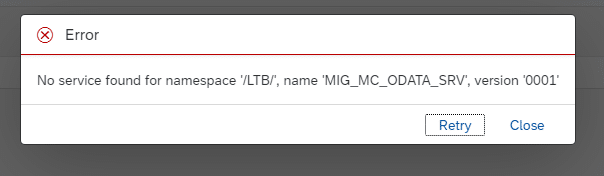
In the scenario documented here, the project-creation error was associated with the OData service MIG_MC_ODATA_SRV not being available through the expected SAP Gateway configuration.
Do not activate services by assumption
The service relationship in this article comes from the documented system scenario and is not presented as a universal prerequisite for every release or deployment model. Confirm the Fiori app requirements, embedded or hub Gateway architecture, system alias, service registration and authorisations in the affected landscape before making a change.
1. Resolve MIG_MC_ODATA_SRV Service Issues
This section addresses a project-creation failure associated with SAP Gateway service availability. The objective is to verify the service in the correct front-end or embedded Gateway system, use the appropriate system alias and confirm that the Fiori application can create a migration project.
The following steps show how the service was added in the example system. Verify the relevant service and alias in your own landscape before applying the same action.
1.1 Verify the Service in /IWFND/MAINT_SERVICE
Transaction /IWFND/MAINT_SERVICE is used to inspect and activate SAP Gateway services. Before adding a service, confirm the deployment model, client, system alias, authorisations and transport approach with the SAP Basis or Fiori platform owner.
Run transaction /IWFND/MAINT_SERVICE in the SAP Gateway system responsible for the application.
Choose Add Service, as shown in the screenshot.

Enter the service-selection criteria shown below.
Select system alias LOCAL only when it is correct for the deployment model and target back-end system.
Search for external service MIG_MC_ODATA_SRV.
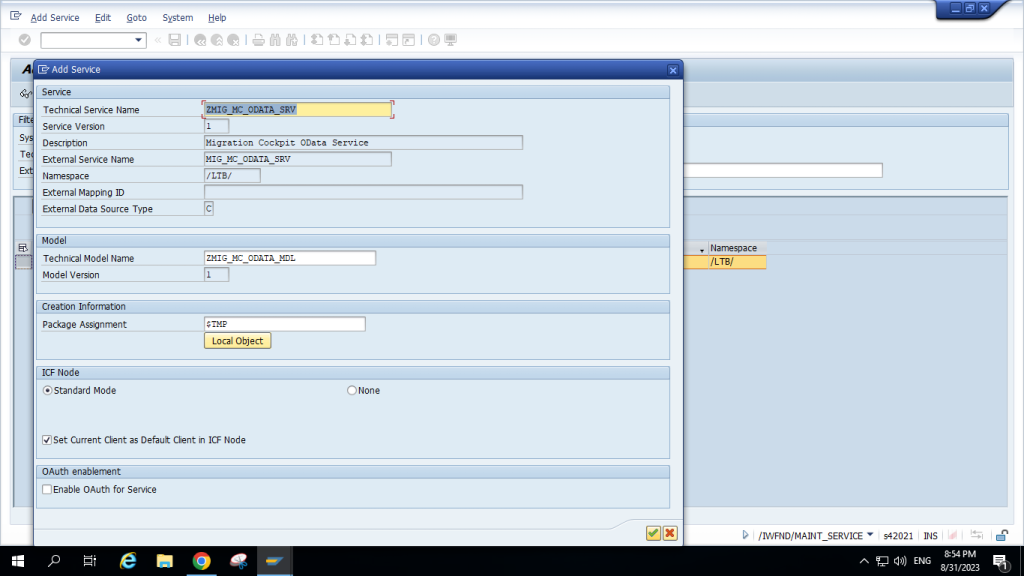
For a temporary, non-transportable test in the example system, the package assignment is $TMP. Use an approved transportable package when the service registration must move through the landscape.
After the OData service is registered correctly, retest the application and confirm that project creation succeeds.
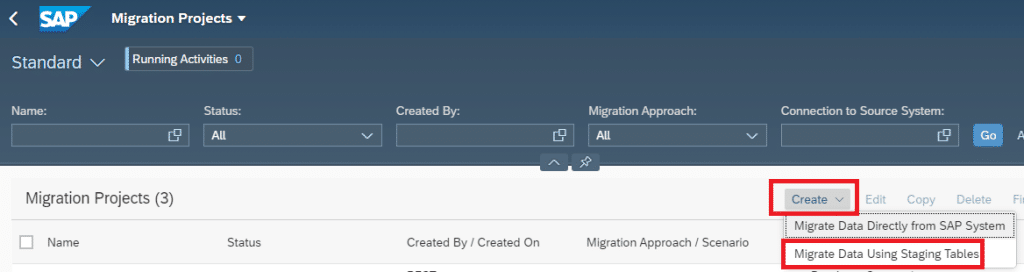
Return to the Migrate Your Data app. The project-creation page shown below should now be available.
Continue with related SAP S/4HANA finance guidance
Connect the migrated G/L account design to the wider target solution with the SAP Finance organisation structure guide, the SAP S/4HANA MM–FI integration guide and the SAP S/4HANA Material Ledger hub. Use these resources to validate organisational assignments, account determination and valuation dependencies around the migrated master data.
2. Migrate G/L Account Master Data
The following example migrates G/L account master data through a staging-table project. The process moves from project creation and template upload through validation, preparation, mapping, simulation, migration and controlled error correction.
This example uses the Migrate Your Data – Migration Cockpit app to load G/L account master data into SAP S/4HANA.
2.1 Create the Migration Project
A migration project defines the migration approach, staging-table location, development package and migration objects. Establish the company-code scope, source-data owner, target design and evidence requirements before creating the project, because these decisions affect mapping, testing and cutover reconciliation.
Create the migration project using the scope and staging-table approach approved for the migration cycle.

Choose Step 2 after reviewing the project details.
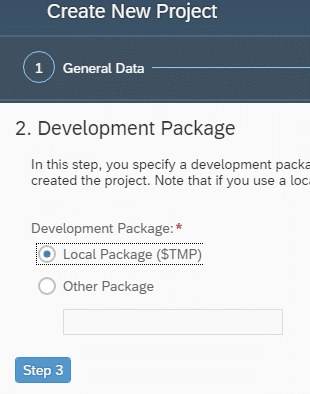
Select Local Package for the non-transportable example, then choose Step 3. For governed projects, assess whether a transportable development package is required.
Select the migration object FI – G/L Account, as shown below. Confirm that the object is available and appropriate for the installed release.
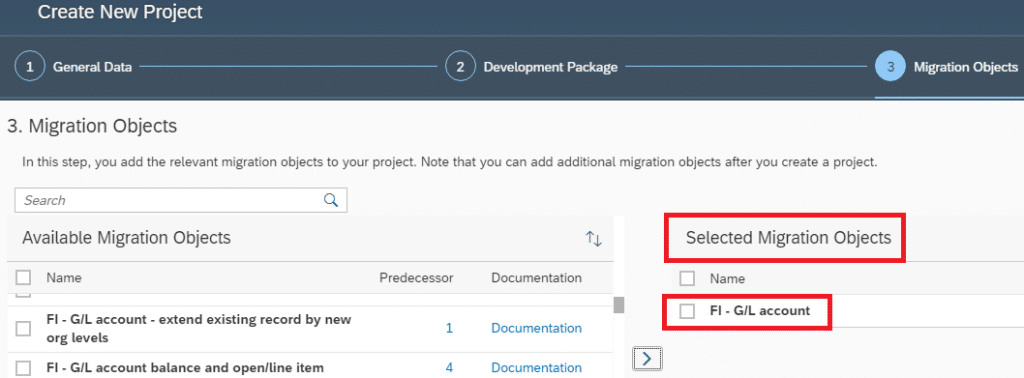
Review the selected approach, package and migration object, then choose Create Project.
The project is created successfully and is ready for source-data preparation.

2.2 Upload the Completed Master-Data File
Use the template generated for the selected migration object and release. Populate only supported fields, preserve the required structure and reconcile the number of source records before upload. Do not reuse an older template without confirming that its structure still matches the current migration object.
Open the project, select the G/L account migration object and upload the completed template file.
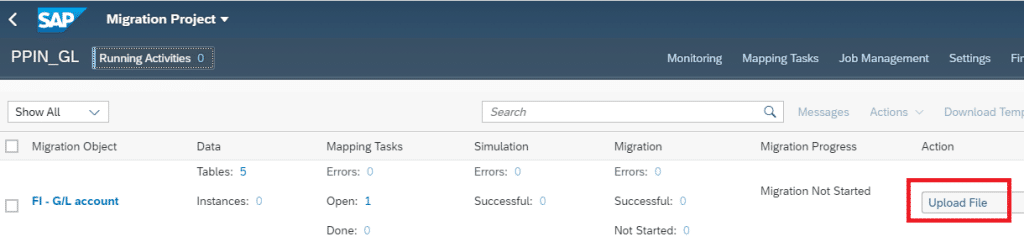
Use the release-specific migration template
Download the template from the selected migration object, complete it without changing its structure and upload it in the supported format. The original example used an XML file prepared for a car-business G/L account scenario. Current template types and file-size rules vary by release, so confirm them in the official SAP staging-table documentation. Do not reuse the example’s business data in another project.
2.3 Validate the Uploaded G/L Account Data
Validation checks the uploaded data against the migration object’s technical structure and business rules. Treat errors as blocking until resolved; review warnings with the relevant finance or master-data owner instead of accepting them automatically.
The system validates the uploaded records and reports errors or warnings against the migration object’s rules.

2.4 Transfer Data to the Staging Tables
After file validation, transfer the selected records to the staging tables and reconcile the transferred quantity with the approved source population. SAP creates one or more staging tables for each relevant migration object, depending on its structures and relationships.
After resolving blocking upload issues, transfer the validated data to the staging tables.
Choose Transfer Data to Staging Table, as shown below, and monitor the activity to completion.


2.5 Prepare the Staging Tables
Preparation makes the transferred instances ready for mapping and subsequent processing. Repeat this activity when additional data is placed in the staging tables, then monitor the activity until it completes successfully.
The staging tables must be prepared before mapping, simulation and migration can proceed.
Choose Prepare and monitor the preparation activity.

2.6 Process and Confirm Mapping Tasks
Mapping converts source-system values into valid SAP S/4HANA target values. Value mappings translate individual source values, while fixed-value tasks provide governed defaults for target fields. Business owners should approve mappings that affect accounting, organisational assignments or reporting.
The system now identifies mapping tasks between source values in the uploaded master data and valid target values in SAP S/4HANA.
Open Mapping Tasks to review the required value and fixed-value mappings.
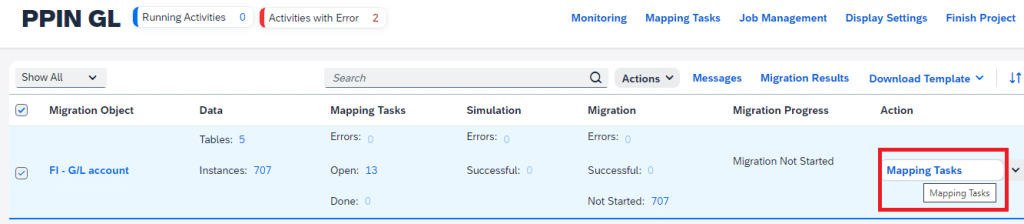
In this example, the source data generated 13 mapping tasks. The number and type of tasks depend on the selected migration object and source values.
What mapping tasks control
Value-mapping tasks translate source values into target values; fixed-value tasks supply controlled defaults for target fields. Mapping decisions can affect accounting behaviour, organisational assignments and reporting, so they require business ownership rather than technical confirmation alone.
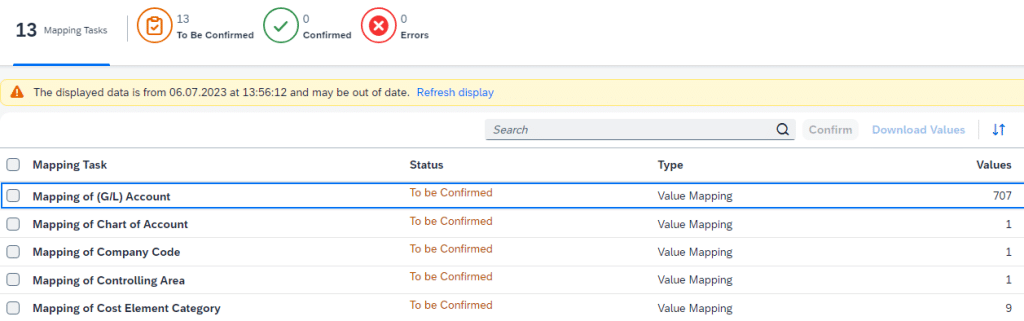
Review and confirm all 13 mapping tasks individually, recording any business decisions that affect target values.
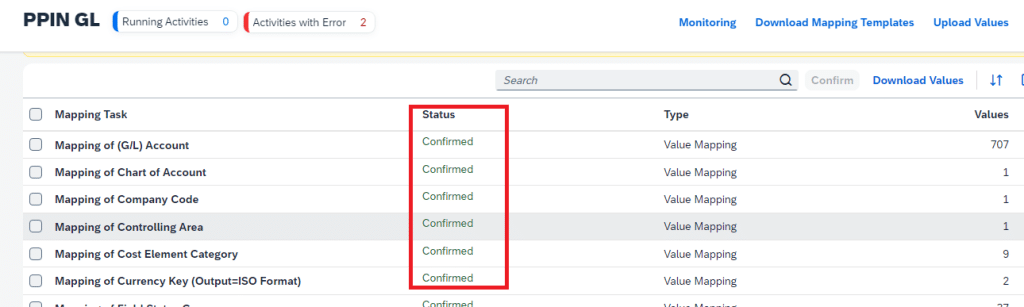
2.7 Simulate the G/L Account Migration
Simulation runs the migration logic before the final transfer. Use it to expose configuration, mapping and data-quality errors, then reconcile the simulated population and correct issues before authorising a productive migration run.
Once all blocking mapping tasks are complete, the system makes the Simulate action available.

2.8 Migrate the Validated Data
The migration step writes validated instances to SAP S/4HANA. Execute it only within an approved cutover window after simulation, reconciliation and business sign-off are complete.
Cutover control before migration
Do not start the productive load solely because simulation is available. Confirm source-to-staging reconciliation, mapping approval, successful simulation, authorisation, the cutover window, downstream validation, error ownership and rollback or correction procedures.
After successful simulation and approval, start the migration run and monitor its status.
2.9 Review and Reconcile the Migration Result
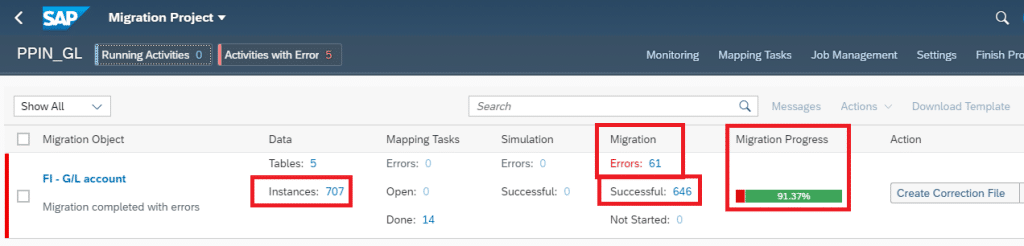
The migration result separates successful and failed instances. Reconcile these totals to the original source population and retain the status, messages and correction decisions as migration evidence.
The result identifies successful and failed migration-object instances.
3. Correct Migration Errors
The correction cycle isolates instances that failed during simulation or migration. Correct the underlying source-data or configuration cause, upload the correction file and repeat validation and simulation before migrating the affected records again.
In this G/L account example, the migration result contains 61 errors requiring investigation and correction.
The Migration Cockpit can generate a correction file containing the instances that have error status.
Official correction-file procedure
SAP states that a correction file contains migration-object instances with status Error and can be generated after simulation or migration. Follow the current SAP correction-file procedure, then preserve the original errors and the corrected delta for reconciliation.
Download the correction file, resolve each error in a controlled working copy and reload only the corrected instances.
3.1 Create and Download the Correction File
A correction file provides a controlled working set for failed migration-object instances. Preserve the initial errors, correction owner and resolution evidence so that the final successful result can be traced back to the original failure.
Choose Create Correction File. The option is visible in the migration result shown above.
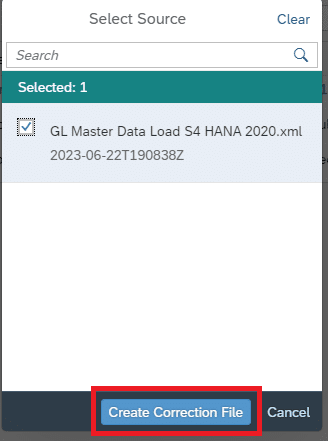
Review the detailed error messages before changing either the source data or configuration.

The error list now provides the basis for root-cause analysis and correction.
3.1.1 Error 1: Account Category N Does Not Support Cost Elements
The first example concerns the relationship between G/L account type and cost-element behaviour. Confirm the intended business use of each account before changing the source value; the correction shown here is specific to the example data.
The first error is “Account category N does not support cost elements.”
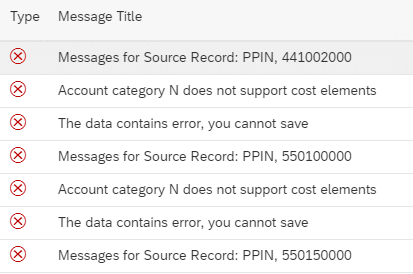
Reviewing the source file shows that the affected G/L accounts were assigned account type N incorrectly for this scenario.

For the business purpose represented in this example, the affected accounts should use type P instead of N.

The affected source records are corrected from account type N to P.

3.1.2 Error 2: Missing Field Status Configuration
The second example is configuration-dependent. Validate the target field status variant and field status group against the approved finance design before creating or transporting missing configuration.
The second error is caused by missing field status configuration in the example target system.

Review the relevant configuration in the target SAP S/4HANA system.
Use the following SAP Reference IMG path:
SPRO –> Financial Accounting –> Financial Accounting Global Settings –> Ledgers –> Fields –> Define Field Status Variants
Select field status variant 010 and choose Field Status Groups. Confirm that variant 010 is the correct target variant before changing it.

In the documented example, field status group SEC0 is added and saved through the approved configuration process.
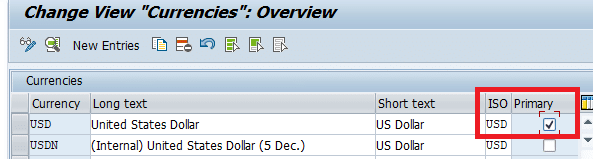
3.1.3 Error 3: Duplicate USD Currency Entries
The third example concerns duplicate currency definitions. Review the existing currency configuration and dependencies before designating a primary entry; do not apply the example mechanically to another landscape.
A third possible error in this scenario is shown below.

Resolution for the documented example:
Open transaction OY03. In this example, two entries exist for currency USD.
After confirming the intended configuration and dependencies, designate the correct entry as primary.
4. Upload, Validate and Migrate the Corrected File
Upload the corrected records as a controlled delta, run validation again, transfer them to staging, prepare and map where required, and simulate before the final migration. Close the cycle only after the successful and rejected totals reconcile to the original population.
Upload the corrected file containing the repaired error records.

The system validates the corrected file again and transfers the accepted records to the staging tables.

After repeating preparation, mapping and simulation, all corrected records in this example are migrated successfully to SAP S/4HANA.
Image attribution
SAP S/4HANA Migration Cockpit FAQ
Is LTMC still used for new SAP S/4HANA migrations?
No. Current SAP documentation describes LTMC as deprecated and identifies the Fiori-based Migrate Your Data – Migration Cockpit app as its successor. Always verify the behaviour for the installed SAP S/4HANA release.
Why should mapping tasks be reviewed by business owners?
Mapping tasks determine how source values and defaults become target values in SAP S/4HANA. Incorrect confirmations can create technically successful but functionally wrong master data, so finance and data owners should approve material decisions.
What is the purpose of migration simulation?
Simulation executes migration logic before the final load and helps expose data, mapping and configuration issues. A clean simulation should still be followed by record-count reconciliation and business validation.
What does a Migration Cockpit correction file contain?
A correction file contains migration-object instances with error status. Correct the underlying cause, upload the controlled delta and repeat the relevant validation and simulation steps before migration.


