
Part‑6 focuses on the additional configuration required when EWM runs as a decentralized system connected to S/4HANA.
This includes version‑control parameters, delivery creation rules, batch management behavior, and cross‑landscape distribution (XLD). These settings ensure that decentralized EWM behaves consistently with S/4HANA and that documents, batches, and stock movements remain synchronized across systems.
This final part completes the entire integration landscape and prepares your system for productive use.
📘 Master S/4HANA EWM Integration — 7‑Part Series
You are currently reading Part 6 — the final part of the 7‑Part S/4HANA–EWM Integration Series.
This section completes the decentralized EWM configuration. Once you finish this post, revisit the full series to validate your end‑to‑end integration design.
Return to Part 0 →In the contemporary landscape of global commerce, the architectural integrity of a Warehouse Management System (WMS) is no longer merely a functional concern—it is a strategic imperative. As large-scale enterprises transition to SAP S/4HANA, the debate between “Embedded” and “Decentralized” Extended Warehouse Management (EWM) has shifted. While Embedded EWM provides a simplified footprint suitable for mid-market operations, the Decentralized EWM model—running on a dedicated S/4HANA stack—has emerged as the gold standard for high-volume, mission-critical logistics execution.
The shift toward a decentralized architecture is fundamentally a move toward architectural decoupling. By isolating the warehouse execution layer from the core Enterprise Resource Planning (ERP) environment, organizations achieve a high-availability posture. In high-velocity environments, the core ERP is often burdened by heavy financial period closings, complex Material Requirements Planning (MRP) runs, and global human capital management processes. In an embedded scenario, these resource-intensive tasks can create CPU and memory overhead that introduces latency in the warehouse, where every millisecond of “system hang” translates to a delay on the loading dock.
Decentralization mitigates this risk by providing a dedicated instance for logistics. This separation ensures that warehouse operations—such as picking, packing, and shipping—maintain operational throughput even during central ERP maintenance windows or performance spikes. Furthermore, decentralization facilitates Independent Upgrade Cycles. A Lead Architect can upgrade the core S/4HANA ERP to leverage new financial features without necessitating a simultaneous, high-risk upgrade of the WMS layer, thereby reducing the total risk profile of the digital transformation.
However, the autonomy of a decentralized system introduces the challenge of transactional consistency. The integration is not a “set and forget” task; it is a meticulous orchestration of data synchronization between the S/4HANA core and the EWM service provider. The precision of configuration in areas such as Inbound and Outbound delivery logic, deletion protocols, and Goods Issue (GI) cancellation is the primary determinant of whether a supply chain is truly automated or merely a collection of disconnected silos.
In SAP EWM, the accuracy of configuration across Inbound and Outbound delivery logic, deletion handling, and Goods Issue (GI) reversal directly determines whether your production supply chain operates as a truly automated, integrated flow or collapses into disconnected manual silos.
1. Configuration Related to Decentralized EWM Only
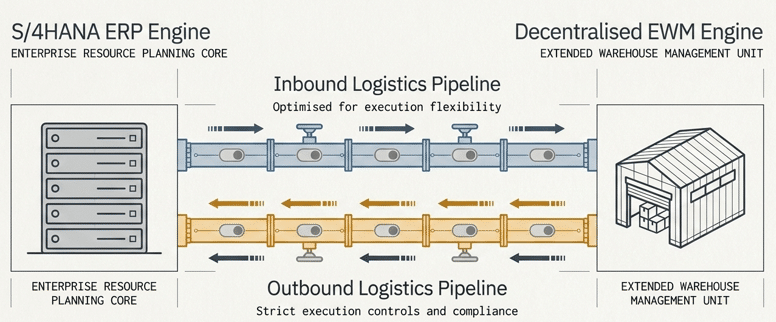
SAP S/4HANA Decentralized EWM integration is the architectural synchronization between a central ERP core and a standalone Extended Warehouse Management system. Successful integration requires precise configuration of Inbound Deliveries, Outbound Deliveries, and Goods Issue protocols. Key focus areas include enabling local delivery creation, establishing rigorous deletion protocols, and managing cross-delivery Handling Unit (HU) communication to ensure real-time inventory accuracy and financial reconciliation across the distributed landscape.
Please follow the below path
SCM Extended Warehouse Management -> Extended Warehouse Management -> Interfaces -> ERP Integration -> ERP Integration for Decentralized EWM -> Set Control Parameters for ERP Version Control
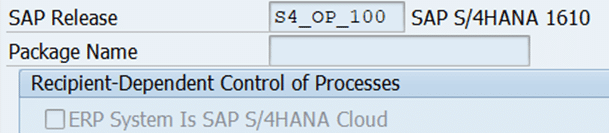
2. SAP Release
It should be “S4_OP_100 for all SAP S4/HANA 1610 & Higher
3. Inbound Delivery Related Settings
In a decentralized ecosystem, the Inbound Delivery (IBD) serves as the primary communication bridge between procurement and warehouse execution. The logic governing how these documents are created determines the warehouse’s ability to handle the “real world” of logistics, where shipments often arrive without perfect documentation.
3.1 General Settings
Below are the Inbound delivery related geberal settings

3.1.1 Unique ASN Number
Selected: Do Not Check if ASN Number is Unique
Meaning: This controls whether EWM should validate that every ASN (Advanced Shipping Notification) number is unique.
Why this option is chosen:
- Many suppliers reuse ASN numbers or send ASNs without strict uniqueness.
- Enforcing uniqueness can cause unnecessary errors or block inbound processing.
- Best for environments where ASN uniqueness is not guaranteed.
When to change: Only if your business mandates strict ASN uniqueness for compliance or traceability.
3.1.2 Perform Inbound Delivery Split
Selected: Perform Inbound Delivery Split and Report to ERP
Meaning: Determines whether EWM is allowed to split an inbound delivery (e.g., by HU, item, or partial receipt).
Why this option is chosen:
- Splitting is essential when goods arrive in multiple HUs or partial quantities.
- Reporting the split back to ERP keeps both systems synchronized.
- Prevents mismatches between EWM and ERP delivery structures.
When to change: If your business never splits inbound deliveries (rare).
3.1.3 Report in Yard to ERP
Selected: Report In Yard to ERP
Meaning: Controls whether EWM should inform ERP when a truck/container arrives in the yard.
Why this option is chosen:
- Provides ERP visibility of vehicle arrival.
- Helps production planners and purchasing teams track inbound progress.
- Useful for yard management and dock appointment scheduling.
When to change: If yard management is not used at all
3.1.4 Confirmation Type of SNs
Selected: Only Communicate Goods Movement Posted Serial Numbers
Meaning: Defines how serial numbers are communicated back to ERP.
Why this option is chosen:
- Ensures ERP receives only final, posted serial numbers.
- Avoids sending temporary or scanned-but-not-posted SNs.
- Prevents inconsistencies between EWM and ERP serial number history.
When to change: If ERP needs early SN visibility before GR posting (rare).
3.2 Goods Movement Related Settings
Below are the configurations available in the Goods Movement–related settings for inbound delivery in a decentralized warehouse, along with their respective explanations.

3.2.1 Goods Receipt Mode
There are four options here
- Immediately Send GR Posting and Partial GR Posting to ERP
- Only send Full GR at end of Put away process
- Send Full GR when GR has been posted for all items
- Send Collective GR
Selected: Immediately Send GR Postings and Partial GR Postings
Meaning: Controls when EWM sends the Goods Receipt message to ERP.
Why this option is chosen:
- Ensures ERP stock is updated immediately after GR in EWM.
- Supports partial GR (common in production and procurement).
- Prevents delays in stock availability for MRP and ATP.
When to change: If GR should only be sent after full receipt (not typical).
3.2.2 Posting Change with Reference to an Inbound Delivery
Choose the option of ” Post.Chg.in ERP can Be Posted wrt Inb. Deliv.” The other option is -cannot be posted wrt. inbound delivery.
Selected: Posting Change in ERP Can Be Posted wrt Inbound Delivery
Meaning: Allows posting changes (e.g., quality → unrestricted) to be linked to the inbound delivery.
Why this option is chosen:
- Maintains traceability of stock movements.
- Ensures ERP documents remain consistent with EWM actions.
- Useful for quality inspection and putaway processes.
When to change: If posting changes should not reference inbound deliveries (rare).
3.2.3 Sequence of Post. Chg. And GR Messages
Choose the option of “Send Post. Chg. Message Before Full GR Message”. The other available option is “Send Post. Chg. Message After Full GR Message”
Selected: Send Posting Change Message Before Full GR Message
Meaning: Defines the order in which EWM sends messages to ERP.
Why this option is chosen:
- Ensures ERP receives stock-type changes before final GR.
- Prevents ERP errors where GR is posted but stock type is missing.
- Critical when quality inspection or deconsolidation is involved.
When to change: If your process requires GR first (uncommon).
3.2.4 Customer Stock
Selected: Customer Stock Supported
Meaning: Enables handling of customer-owned stock (e.g., consignment, returns).
Why this option is chosen:
- Required for returns, subcontracting, or consignment processes.
- Allows EWM to differentiate between company-owned and customer-owned stock.
When to change: If customer stock is never used.
3.2.5 Reversal after Putaway
Selected: Allow for Completed LE Delivery (Production)
Meaning: Controls whether GR reversal is allowed after putaway is completed.
Why this option is chosen:
- Production environments often need to reverse GR even after putaway.
- Prevents operational bottlenecks when mistakes happen.
- Ensures flexibility without forcing manual stock adjustments.
When to change: If strict compliance forbids reversals after putaway.
3.3 Quality Inspection Related Settings
Below are the configurations available in the Quality Inspection related settings for inbound delivery in a decentralized warehouse, along with their respective explanations.

3.3.1 Possible Usage Decisions
Three available options here
- All Inspection Decisions Can Be Made
- Internal Inspection Decision and stock transfer
- No external Inspection Decisions
Selected: All Inspection Decisions Can Be Made
Meaning: Defines what types of inspection decisions are allowed in EWM.
Why this option is chosen:
- Gives full flexibility to inspectors.
- Supports acceptance, rejection, partial decisions, and follow-up actions.
- Best for warehouses with varied inspection scenarios.
When to change: If decisions must be restricted for compliance reasons.
3.3.2 Quality Confirmation for Returns
Choose the option of “Quality Confirmation for Returns”. The other option available is “Do not Communicate Inspection Results to ERP”
Selected: Quality Confirmations for Returns
Meaning: Controls what usage decisions are allowed after inspection.
Why this option is chosen:
- Specifically supports returns processing, where decisions differ from procurement.
- Ensures correct follow-up actions (scrap, return to customer, rework).
When to change: If you are not handling returns in EWM.
3.3.3 Quality Management Integration
Choose option “Quality Management with QIE or Integrated in ERP QM”. The other available option is “Quality management Only in EWM (QIE)”
Selected: Quality Management with QIE or Integrated in ERP
Meaning: Defines whether quality management is handled by:
- QIE (Quality Inspection Engine)
- ERP QM module
Why this option is chosen:
- Allows hybrid scenarios.
- Ensures compatibility with both EWM-driven and ERP-driven inspection processes.
- Best for systems where some inspections are in ERP and others in EWM.
When to change: If you want to force all QM to ERP or all to QIE.
3.4 Batch Control Related Settings
Below are the configurations available in the Batch Control related settings for inbound delivery in a decentralized warehouse, along with their respective explanations.

3.4.1 Prevent Batch Creation in EWM
We will receive batch from S4. So, choose option “Batch Creation Forbidden in EWM”. The other option is “Batch Creation Allowed in EWM”
Selected: Batch Creation Forbidden in EWM
Meaning: This setting controls whether warehouse users can create new batch numbers directly in EWM.
Why this option is chosen:
- Batch creation should normally happen in ERP, not EWM.
- Ensures centralized batch governance (classification, shelf life, status).
- Prevents inconsistent batch master data between ERP and EWM.
When to change: Only if your warehouse must create emergency batches locally (rare).
3.4.2 Batch Update
Selected: Improved Joint Update of Batch and Classification
Meaning: Defines how batch master data and classification updates are synchronized.
Why this option is chosen:
- Ensures batch attributes + classification are updated together.
- Prevents mismatches where batch master updates reach ERP but classification does not.
- Recommended for decentralized EWM to maintain data integrity.
When to change: If classification is not used (uncommon).
3.4.3 Batch Change in Inbound Delivery
Choose option of “Batch change not allowed”. The other option is “Batch Can be Changed Using External Logic”
Selected: Batch Change Generally Not Allowed
Meaning: Controls whether users can change batch numbers in inbound deliveries.
Why this option is chosen:
- Prevents unauthorized or accidental batch changes.
- Ensures batch traceability from supplier → GR → stock.
- Avoids compliance issues (especially in pharma/food).
When to change: If your business allows batch substitution during receiving.
3.4.4 Communication of Batch Split of IDL Item
Choose option of ” Immediately Communicate Batch Split when Saving Delivery “. The other option is “”Only communicate batch split at Goods Receipt”
Selected: Immediately Communicate Batch Split when Saving
Meaning: Determines when batch split information is sent to ERP.
Why this option is chosen:
- Ensures ERP receives batch split details as soon as they occur.
- Prevents inconsistencies between EWM and ERP delivery structures.
- Essential when multiple batches are received for the same item.
When to change: If batch splits should only be communicated at GR posting (rare).
3.4.5 Report Batch Changes to ERP
Choose option of ” Send Batch Change Immediately to ERP via REPLACE “. The other option is “”Only send batch change to ERP at Goods Receipt”
Selected: Send Batch Change Immediately to ERP via REPLACE
Meaning: Controls how batch changes are communicated to ERP.
Why this option is chosen:
- Ensures ERP always has the latest batch information.
- REPLACE method overwrites old data cleanly.
- Prevents ERP–EWM batch mismatches.
When to change: If batch changes should be queued or sent only at GR.
As you explore these final decentralized EWM steps, you’ll see how they complete the entire integration blueprint.
Once you finish this part, revisit the full 7‑part series to validate your end‑to‑end design and close any remaining gaps.
View the Complete Series Starting at Part 0 →3.5 Create/Delete Inbound Deliveries
Under the configuration path for inbound processing, architects must define the level of autonomy the EWM system possesses regarding document generation/deletion.

3.5.1 Create Inbound Delivery in EWM
Choose the option of “Possible to Locally Create Inbound Delivery in EWM”
The other available options are
- Not possible to Locally Create Inbound Delivery in EWM
- Local Creation possible, Except by production
- Local creation from template possible
Selected: Possible to Locally Create Inbound Delivery in EWM
Meaning: Allows EWM to create inbound deliveries without ERP.
Why this option is chosen:
- Useful for non-ERP-driven processes (returns, ad‑hoc receipts).
- Provides operational flexibility.
When to change: If all inbound deliveries must originate from ERP.
3.5.2 Create Inbound Delivery Item in EWM
Choose the option of “Inbound Delivery Item Can Be Created Locally in EWM”
The other available options are
- Inbound Delivery Item Cannot Be Created Locally in EWM
- Local creation from template possible
Selected: Inbound Delivery Item Can Be Created Locally in EWM
Meaning: Allows adding new items to an existing inbound delivery.
Why this option is chosen:
- Supports unexpected items or quantity differences.
- Helps warehouse operations proceed without waiting for ERP.
When to change: If strict ERP control is required.
3.5.3 Delete Inbound Delivery
Choose option of Can be deleted. The other option is “IBD cannot be deleted”
Selected: Inbound Delivery Can Be Deleted
Meaning: Allows EWM to delete entire inbound deliveries.
Why this option is chosen:
- Useful when deliveries are created by mistake.
- Prevents clutter and incorrect documents.
When to change: If deletion must only happen in ERP.
3.5.4 Delete Inbound Delivery Item
Choose option of Can be deleted. The other option is “IBD item cannot be deleted”
Selected: Inbound Delivery Item Can Be Deleted
Meaning: Allows deleting individual items from an inbound delivery.
Why this option is chosen:
- Supports operational corrections.
- Prevents errors during receiving.
When to change: If item deletion must be controlled centrally.
3.5.5 Create Inbound Delivery for Plant as Vendor
Selected: Creation of Inbound Delivery Not Allowed
Meaning: Controls whether EWM can create inbound deliveries for plants treated as vendors.
Why this option is chosen:
- Prevents incorrect documents for stock transfers.
- Ensures ERP handles STO (stock transport order) processes.
When to change: If your business uses plant-as-vendor scenarios.
Why “Plant as Vendor” Matters in Internal Supply Chains
Enabling this setting transforms inter‑plant stock transfers into a fully automated, purchase‑order–like process. For example, a German manufacturing plant can ship components to a Mexico assembly plant, and EWM treats the German plant as a vendor. This ensures the receiving warehouse applies the same standardized Receiving, Putaway, and Quality Inspection rules used for external suppliers—creating a unified, enterprise‑wide internal supply chain.
4. Outbound Delivery Related Settings
While inbound logic focuses on receipt, the outbound integration is where Customer Service Level Agreements (SLAs) are met or broken. The complexity of packaging and kitting in a decentralized environment requires deep technical precision.
Below settings are available for the outbound delivery specially for decentralized EWM
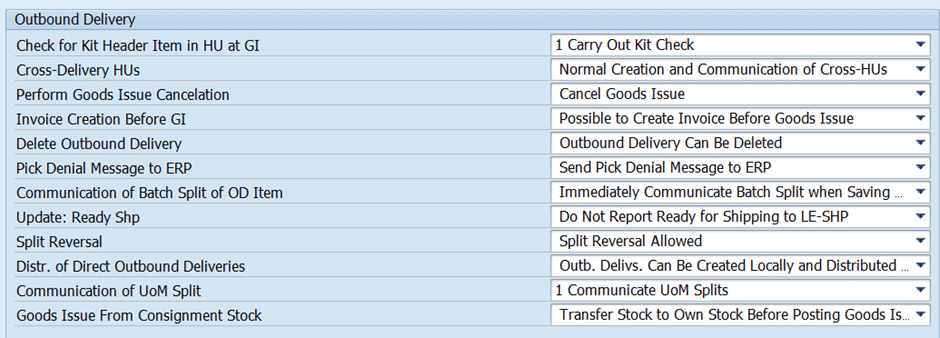
4.1 Check for Kit Header Item in HU at Goods Issue
Choose “Carry Out Kit Check”. The other option is do not carry out kit check.
Selected: Carry Out Kit Check
Meaning: Ensures kit header items are correctly packed before GI.
Why this option is chosen:
- Prevents incomplete or incorrect kit shipments.
- Ensures compliance with BOM structure.
Kit Check at Goods Issue Is a Mandatory Safeguard
In retail and high‑tech kitting, an incomplete Handling Unit can trigger customer claims, pricing disputes, and costly reverse logistics. Enabling the Kit Check at GI ensures the system blocks shipment if the kit header is missing components—acting as the final fail‑safe for order accuracy, FI‑AR integrity, and customer satisfaction.
4.2 Cross-Delivery HUs
Choose the option of “Normal Creation and Communication of Cross-HUs”. The other available option is “Do-not Communicate Cross-HUs to ERP”
Selected: Normal Creation and Communication of Cross-HUs
Meaning: Allows handling units to contain items from multiple deliveries.
Why this option is chosen:
- Supports efficient picking and packing.
- Reduces handling effort.
Why Cross‑Delivery HU Communication Is Essential in Decentralized EWM
Cross‑Delivery HUs—where multiple outbound deliveries share one pallet—are one of the most complex areas in decentralized EWM. Enabling Normal Creation and Communication of Cross‑HUs ensures the full HU structure is sent to S/4HANA, which is critical for SAP TM planning and accurate ASNs. Without this, ERP and customer systems cannot identify which deliveries are inside each pallet, causing receiving‑dock errors and shipment disputes.
4.3 Perform Goods Issue Cancellation
Choose option “Cancel Goods issue”. The opter option is “Do not cancel Goods issue”
Selected: Cancel Goods Issue
Meaning: Allows reversing GI in EWM.
Why this option is chosen:
- Provides operational flexibility.
- Essential when mistakes occur.
4.4 Invoice Creation Before GI
Choose ” Possible to Create Invoice Before Goods Issue”.
The other options are
- Generally, not Possible to Create Invoice Before Goods Issue
- Not Possible to Create Invoice Before Goods Issue for ERP
- Not Possible to Create Invoice Before Goods Issue for CRM
Selected: Possible to Create Invoice Before Goods Issue
Meaning: Allows billing before GI.
Why this option is chosen:
- Supports early billing scenarios.
- Useful in high-volume distribution.
4.5 Delete Outbound Delivery
Choose option “Outbound Delivery Can Be Deleted”. The opter option is “Outbound Delivery Cannot Be Deleted”
Selected: Outbound Delivery Can Be Deleted
Meaning: Allows EWM to delete outbound deliveries.
Why this option is chosen:
- Helps correct operational errors.
4.6 Pick Denial Message to ERP
Choose option “Send Pick Denial Message to ERP”. The opter option is “Do not Send Pick Denial Message to ERP”
Selected: Send Pick Denial Message to ERP
Meaning: Sends a message when picking cannot be completed.
Why this option is chosen:
- Keeps ERP informed.
- Helps purchasing or customer service react quickly.
4.7 Communication of Batch Split of OD Item
Choose option “Immediately Communicate Batch Split when Saving Delivery”.
The opter available options are
- Only Communicate Batch Split at Goods Issue
- Only Communicate Batch change at Goods Issue
- Immediately Communicate Batch Split quantity change
Selected: Immediately Communicate Batch Split when Saving
Meaning: Sends batch split info to ERP immediately.
Why this option is chosen:
- Ensures ERP has accurate batch-level data.
4.8 Update: Ready Ship
Selected: Do Not Report Ready for Shipping to LE-SHP
Meaning: Controls whether EWM reports “Ready for Shipping” to ERP.
Why this option is chosen:
- Some businesses only report GI, not intermediate statuses.
4.9 Split Reversal
Choose option “Split Reversal Allowed”. The opter option is “Split Reversal not Allowed”
Selected: Split Reversal Allowed
Meaning: Allows reversing delivery splits.
Why this option is chosen:
- Provides flexibility when correcting packing or picking.
4.10 Distribution of Direct Outbound Deliveries
Choose option “Outb. Delivs. Can Be Created Locally and Distributed to ERP”. The opter option is “Outb. Delivs. Cannot Be Created Locally”
Selected: Outbound Deliveries Can Be Created Locally and Distributed
Meaning: Allows EWM to create outbound deliveries and send them to ERP.
Why this option is chosen:
- Supports decentralized outbound processes.
4.11 Communication of UoM Split
Choose option “Communicate UoM Splits”. The opter option is “Do not Communicate UoM Splits”
Selected: Communicate UoM Splits
Meaning: Sends unit-of-measure splits to ERP.
Why this option is chosen:
- Ensures ERP reflects correct UoM quantities.
4.12 Goods Issue from Consignment Stock
Choose option “Transfer Stock to Own Stock Before Posting Goods Issue”. The opter option is “Post Goods Issue from Consignment Stock”.
Selected: Transfer Stock to Own Stock Before Posting GI
Meaning: Controls how consignment stock is handled at GI.
Why this option is chosen:
- Ensures ownership transfer happens before shipment.
- Required for correct accounting.
5. Non-Delivery based Settings
Below are the settings related to the non-delivery
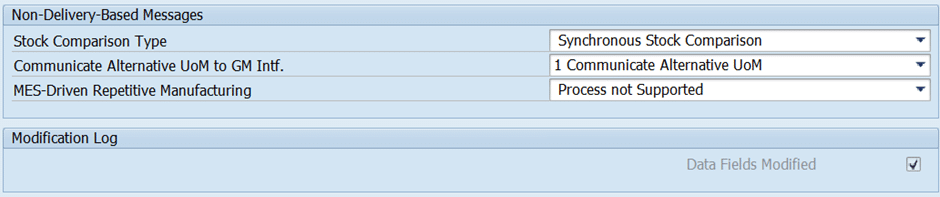
5.1 Stock comparison Type
Choose option “Synchronous stock comparison”. The opter option is “Asynchronous stock comparison using IDOCs”
Selected: Synchronous Stock Comparison
Meaning: Controls how EWM compares stock with ERP.
Why this option is chosen:
- Ensures real-time stock alignment.
- Prevents discrepancies.
5.2 Communicate Alternate UoM to GM Interface.
Choose option “Communicate Alternative UoM”. The opter option is “Communicate Basic UoM”.
Selected: Communicate Alternative UoM
Meaning: Sends alternative UoM (e.g., EA, BOX, PAL) to ERP during goods movements.
Why this option is chosen:
- Ensures ERP receives correct UoM information.
- Prevents conversion errors.
5.3 MES-Driven Repetitive Manufacturing
Control Parameters for ERP Version Control are completed now.
Selected: Process Not Supported
Meaning: Indicates whether MES-driven REM is supported.
Why this option is chosen:
- Your warehouse likely does not use MES-driven REM.
- Prevents unnecessary message processing.
6. Cross Landscape Distribution (XLD) for Decentralized S4 HANA EWM
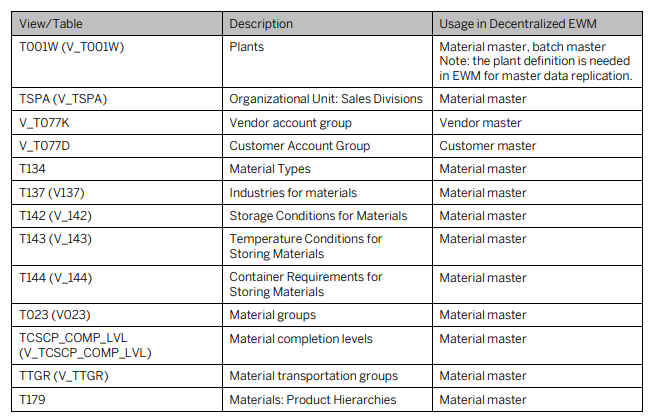
If we are working with decentralized EWM on S4 HANA option, then it is very critical to keep S4 & decentralized EWM systems in sync.
XLD ensured that SAP ERP and EWM Customizing are always in Synchronization
–> We can compare the entries between the decentralized EWM and S/4HANA through the SCMP and make both systems in synch through manual configuration.
–> Alternatively, Cross-landscape system transports (“XLD” transports) can be set up through Solution Manager to automate the distribution of configuration entries between S/4HANA and decentralized EWM for a selected set of tables.
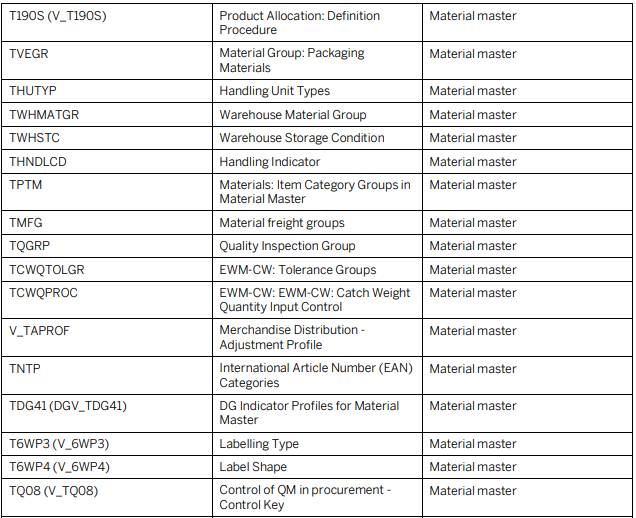
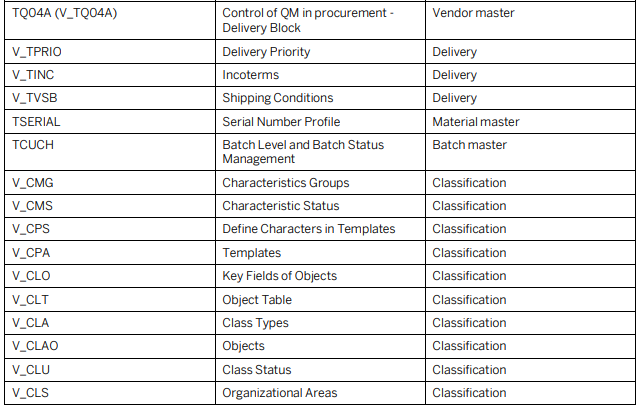
Below is the list of fields/tables which are necessary to be in sync between S4 HANA & Decentralized EWM on S4 HANA.

You have now completed all six parts of the S/4HANA–EWM Integration Series — from connectivity and ERP settings to EWM structures, stock mapping, document flow, and decentralized configuration.
Your system is now fully prepared for real‑time, production‑grade integration between S/4HANA and EWM. This series has given you the complete blueprint used by senior SAP consultants in real implementation projects. You can now proceed to advanced topics such as warehouse process types, storage control, HU management, and TM–EWM integration to further enhance your warehouse capabilities.
Download the SAP Authorized Guide
Note: You can download the SAP authorized guide from where the above list of fields is taken.
Integration of SAP ERP or SAP S/4HANA with decentralized EWM in SAP S/4HANA
Click here to download the official PDF
7. Best Practices for Decentralized EWM
Successful Decentralized EWM integration is an exercise in balancing autonomy with visibility. To achieve an optimized digital supply chain, Lead Architects should adhere to the following best practices:
- Prioritize Decoupled Availability: Use “Local Creation” (6.1.2.5.x) to ensure that warehouse operations can continue even during ERP latency or maintenance windows.
- Enforce Kitting Integrity: Always enable Kit Header checks (6.1.3.1) to prevent the high TCO associated with shipping errors and returns management.
- Synchronize Financial and Physical Reality: Ensure that GI Cancellation (6.1.3.3) is enabled to maintain a clean audit trail, avoiding the need for manual inventory write-offs.
- Leverage End-to-End Automation: Integrate the decentralized EWM with Production Planning and Detailed Scheduling (PP/DS). This ensures that warehouse staging is driven by the actual production BOM (Bill of Materials) and real-time PIRs (Planned Independent Requirements), rather than static, time-based replenishment.
- Monitor Integration Health: Implement aggressive monitoring for qRFC and IDoc failures. In a decentralized world, the “health” of the system is the health of its interfaces.
You’ve completed the series. Now consolidate your design.
Revisit the introduction and earlier parts to validate your end‑to‑end EWM–S/4HANA integration blueprint.
Return to Part 0: Integration Overview →8. FAQ: Technical Troubleshooting for Decentralized EWM
Yes, but only if the configuration path 6.1.2.5.3 (Delete Inbound Delivery) is set to “Can be deleted.” Architects must ensure that the deletion logic includes a “callback” to the S/4HANA core to prevent the ERP from expecting a receipt that will never arrive.
If the setting “Do-not Communicate Cross-HUs to ERP” is selected, the S/4HANA system will lack visibility into the physical packaging hierarchy. This typically results in an inability to generate accurate Advanced Shipping Notifications (ASNs) and can disrupt downstream freight settlement processes in SAP TM.
The configuration 6.1.2.5.5 (Create Inb. Del. For a Plant as a Vendor) should be enabled for all intercompany stock transfers where the sending plant is a separate legal or financial entity. This ensures that the decentralized EWM treats internal stock movements with the same transactional rigor as external procurement.
When a user executes a cancellation in EWM under setting 6.1.3.3, the system issues a reversal signal to the S/4HANA core. This automatically reverses the Material Document and the corresponding Accounting Document in the ERP, ensuring inventory and financial records are perfectly synchronized without manual intervention.
Yes. While “Can be created locally” offers the highest flexibility, “Local creation from template” ensures that the warehouse cannot create documents that are structurally incompatible with the S/4HANA ERP’s data requirements, thereby reducing the rate of integration failures.
9. Conclusion
The transition to a decentralized EWM architecture on SAP S/4HANA is a definitive step toward a more resilient, scalable, and autonomous supply chain. However, the value of this architecture is only realized through the meticulous configuration of its integration points. From the granular control of inbound deletion protocols to the strategic orchestration of outbound kit checks, every setting is a lever for operational excellence.
For the modern enterprise, the “Clean Core” is not just about code—it is about data integrity across the distributed landscape. By mastering these configuration settings, Lead Architects can transform the warehouse from a cost center into a high-performance engine of growth.