
This video and the guide covers the Part‑5 , ERP → EWM document flow, delivery type mapping, item type mapping, and the logic behind initiator codes.
This part explains how ERP delivery types and item categories map to EWM document types and how inbound/outbound flows are synchronized. This is the layer where most real‑time integration issues appear, so understanding the document flow is essential for troubleshooting and stable operations. Once this layer is configured, your system will support complete inbound and outbound processing.
📘 Master S/4HANA EWM Integration — 7‑Part Series
You are currently reading Part 5 of the 7‑Part S/4HANA–EWM Integration Series.
This section explains ERP→EWM document type mapping. Once you complete this post, continue to Part 6 to finalize decentralized EWM integration.
Go to Part 6 →Precise document mapping is the architectural foundation of warehouse automation and inventory integrity. In the absence of a mathematically certain alignment between the enterprise management system (ERP or SAP S/4HANA) and Extended Warehouse Management (EWM), the digital supply chain is vulnerable to data silos, manual reconciliation hurdles, and execution errors. Synchronizing document and item types ensures that high-level business requirements—such as a sales order or a production run—are translated into actionable, accurate warehouse requests on the floor.
Quick Reference: Core Mapping Purposes
- Key Synchronization: Aligning the unique identifiers of ERP document types with specific EWM warehouse request keys.
- Process Differentiation: Empowering a single ERP document type to trigger varied warehouse-specific behaviors through granular logic.
- System Consolidation: Mapping multiple enterprise-level document types into a unified warehouse document type to streamline operational processing.
- Bi-directional Communication: Facilitating seamless data flow from the ERP to EWM while ensuring manual warehouse requests can be mapped back to the ERP correctly.
This mapping serves as the critical communication bridge, ensuring that an enterprise’s strategic intentions are executed with operational precision at the warehouse level.
1. Strategic Foundations of Document Type Mapping
If you are setting up SAP Extended Warehouse Management (EWM), one of the most critical integration points is ensuring that deliveries created in your ERP (ECC or S/4HANA) translate flawlessly into EWM.
Understanding Delivery Type Mapping in Decentralized EWM
When inbound or outbound deliveries flow from ERP to EWM, the system must know exactly how to process them. This is controlled through the Mapping Delivery Type – Document Type configuration. In this guide, we break down how delivery mapping works, explain each key field, and clarify the most critical (and often misunderstood) parameter: the Code for Initiator of a Communication Chain.
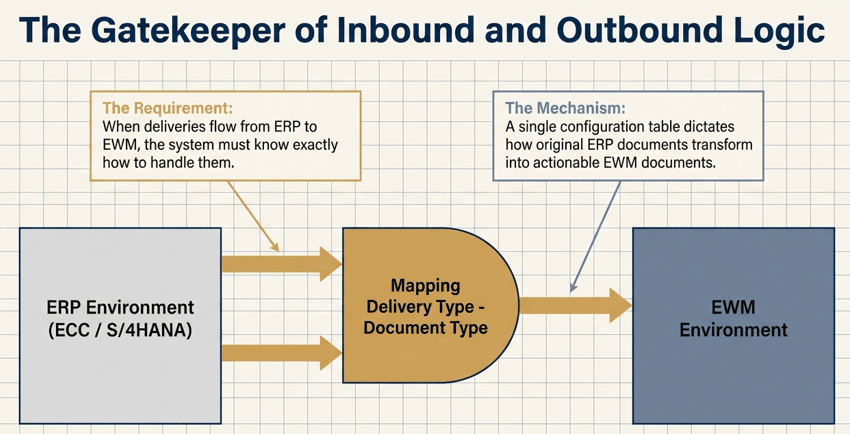
1.1 Understanding the Core Configuration Fields
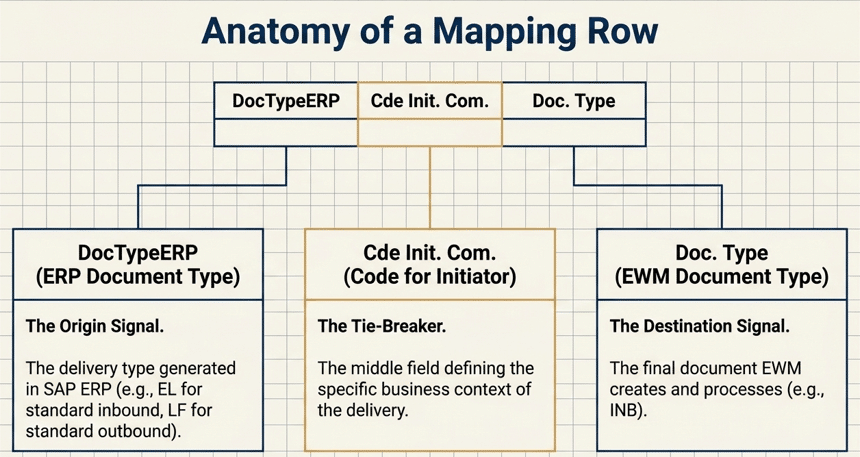
When you open the mapping overview, you are presented with a table that dictates how ERP documents transform into EWM documents. Aside from the Business System, there are three primary columns you must configure:
a) DocTypeERP (ERP Document Type)
This is the original delivery type that was generated in the SAP ERP system. For example, standard ERP inbound deliveries often use EL, while standard outbound deliveries use LF.
b) Cde Init. Com. (Code for Initiator of a Communication Chain)
This is the “middle” field that acts as a tie-breaker. It tells EWM the specific business context of the delivery. (We will explore this in detail below).
c) Doc. Type (EWM Document Type)
This is the final document type that EWM will create and process. For instance, an EL from ERP might simply map to an INB (Inbound Delivery) in EWM.
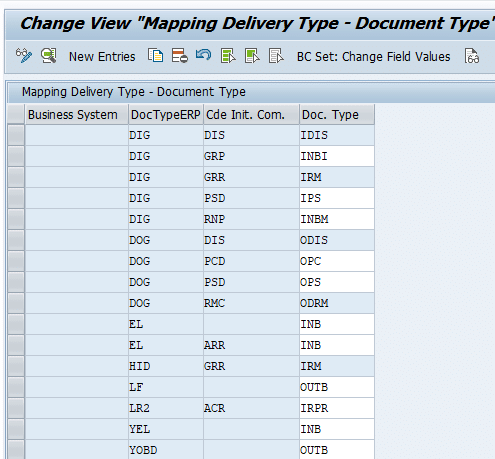
Below is the configuration for our car business warehouse
1.2 The Magic of the “Code for Initiator of a Communication Chain”
In a simple warehouse, a 1:1 mapping might be enough. An ERP outbound delivery (LF) maps to an EWM outbound delivery (OUTB). But enterprise supply chains are rarely simple.
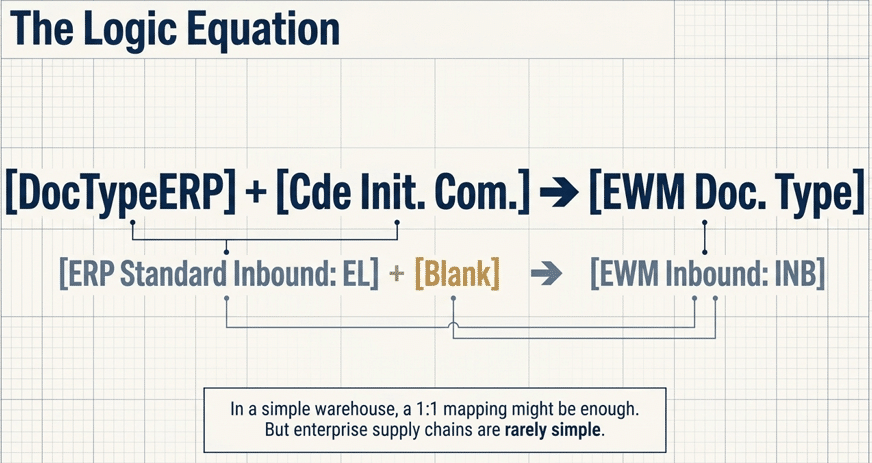
What happens when your ERP system uses the exact same DocTypeERP for entirely different business processes?
This is where the Code for Initiator of a Communication Chain (Cde Init. Com.) becomes your best friend. This 3-character code is passed from the ERP system to EWM in the background. It explicitly defines the trigger or the reason the delivery was created, allowing EWM to split a single ERP document type into multiple, highly specialized EWM document types.
Why the Communication Chain Code Is Critical in Decentralized EWM
What happens when your ERP system uses the same DocTypeERP for completely different business processes? This is where the Code for Initiator of a Communication Chain (Cde Init. Com.) becomes essential. This 3‑character identifier is passed silently from ERP to EWM and defines the true business trigger behind the delivery. It allows decentralized EWM to split a single ERP document type into multiple, highly specialized EWM Document Types, ensuring accurate processing, routing, and automation across complex supply chain scenarios.
a) How It Maps Complex Scenarios
By looking at the configuration table, we can see exactly how this field maps different business scenarios using the same base ERP document.
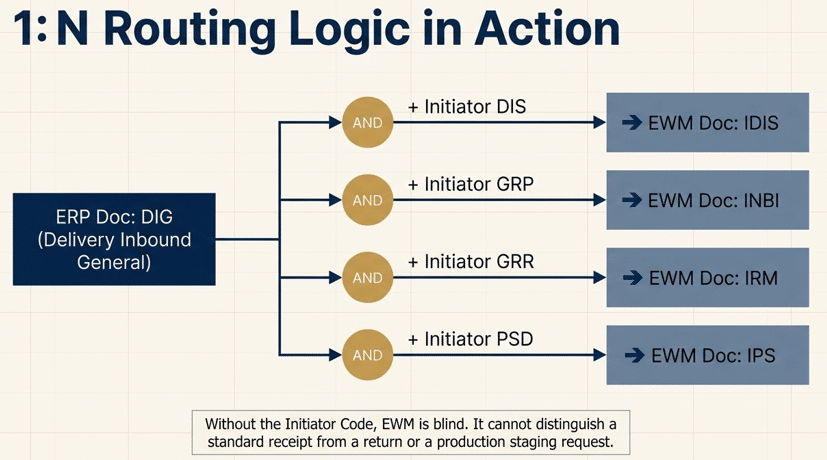
How the Initiator Code Differentiates Complex DIG Scenarios in EWM
By looking at the configuration table, we can see exactly how this field maps different business
scenarios using the same base ERP document.
Let’s look at the DIG (Delivery Inbound General) ERP Document Type as an example:
Scenario 1: DIG + Initiator Code DIS maps to EWM Document Type IDIS.
Scenario 2: DIG + Initiator Code GRP maps to EWM Document Type INBI.
Scenario 3: DIG + Initiator Code GRR maps to EWM Document Type IRM.
Scenario 4: DIG + Initiator Code PSD maps to EWM Document Type IPS.
Without the Initiator Code, EWM would be blind. It wouldn’t know if the incoming DIG document was
a standard receipt, a return, or a production staging request.
1.2.2 Common Initiator Codes and Their Uses
While you can configure custom mappings, SAP provides standard initiator codes to handle complex supply chain integrations:
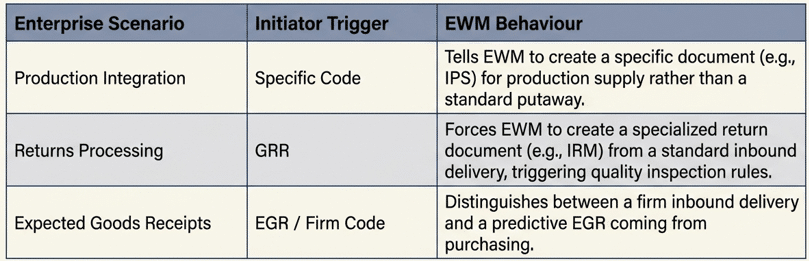
a) Production Integration
When ERP triggers a delivery for production supply, the initiator code tells EWM to create a specific document rather than a standard put away document.
b) Returns Processing
If a customer returns goods, the ERP might use a standard inbound delivery type. However, passing a specific initiator code forces EWM to create a specialized return document (IRM), which can trigger specific quality inspection rules.
c) Expected Goods Receipts
Initiator codes help distinguish between a firm inbound delivery and a predictive Expected Goods Receipt (EGR) coming from purchasing.
2. Advanced Item Type Mapping and Differentiation Attributes
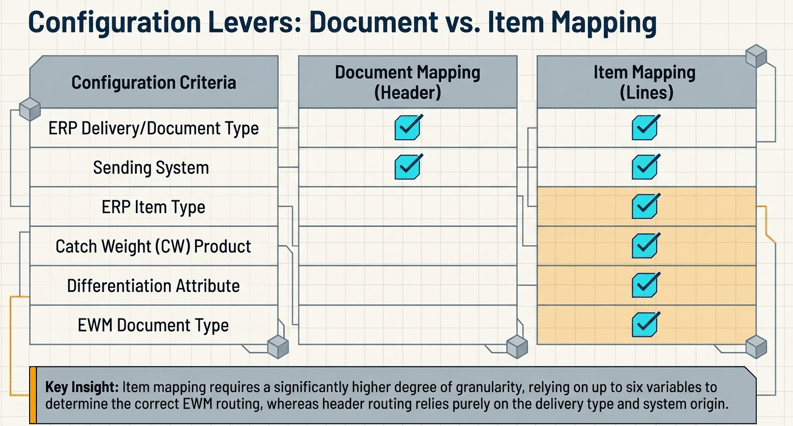
While document-level mapping defines the process, item-level mapping provides the granular control necessary for complex warehouse operations. This granularity is vital for managing specialized requirements, such as Catch Weight (CW) handling, where products possess variable weights and require specific EWM item types.
Why ERP Item Type Mapping Is Critical for Accurate EWM Processing
In SAP Extended Warehouse Management (EWM), routing a delivery from ERP to the warehouse is only half the story. Mapping the header defines the document type, but the real operational logic lives at the line-item level. To ensure EWM correctly handles each material—whether it is a finished product, a return, or vendor consignment stock—you must configure the Mapping of ERP Item Type table. This guide explains each field in this configuration, how they interact, and how the Differentiating Attribute enables EWM to manage complex, multi-scenario supply chain requirements with precision.
2.1 Decoding the ERP to EWM Item Type Mapping Table
When you open the “Mapping of ERP Item Type” configuration view, you are defining the exact rules for how an ERP line item transforms into an EWM line item.
Let’s look at the critical fields populated in the standard setup:
a) DocTypeERP (ERP Document Type)
This is the base delivery document type originating from the ERP system, such as DIG for inbound general or LF for standard outbound deliveries.
b) ItmTpERP (ERP Item Type)
This is the item category assigned to the material in the ERP delivery. Standard examples include TAN for standard items or ELN for inbound delivery items.
As you continue through document mapping, you’ll see how each ERP trigger results in a specific EWM document and warehouse behavior.
Once you complete this part, move to Part 6 where we cover the additional steps required for decentralized EWM on S/4HANA.
Continue to Part 6: Decentralized EWM Final Steps →c) Doc. Type (EWM Document Type)
This is the translated EWM header document type (like IDIS or ODRM) that was determined in the prior document mapping step.
d) Diff.Attr. (Differentiating Attribute)
This is an advanced trigger field used to split identical ERP item types into unique EWM processes based on specific stock indicators (detailed below).
e) Item Type (EWM Item Type)
This is the final, resulting item type generated in EWM (such as IDLV or ODLV). This field ultimately dictates the Warehouse Process Type (WPT) and putaway/picking strategies.
2.2 Practical Scenarios: How the Mapping Works
To truly understand this configuration, let’s look at how these fields combine to handle different real-world logistics scenarios.
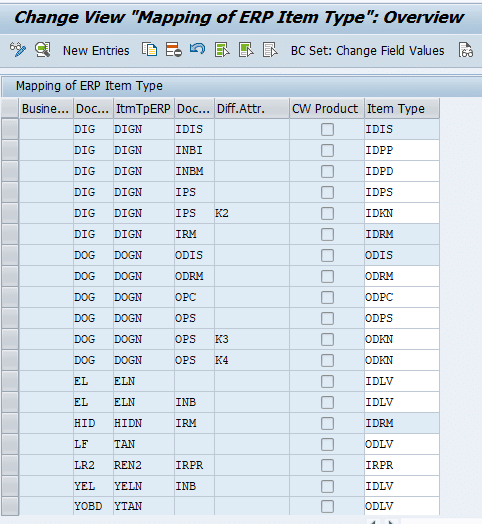
Scenario 1: The Standard Inbound & Outbound Flow
For standard, straightforward warehouse operations, the mapping is highly linear.
How Standard ERP Item Types Map to EWM Item Types
Rule 1 — Outbound Delivery Mapping:
An ERP outbound delivery (LF) containing a standard item (TAN) maps directly to the
standard EWM outbound item type ODLV.
Rule 2 — Inbound Delivery Mapping:
An ERP inbound delivery (EL) containing a standard inbound item (ELN) maps directly to
the standard EWM inbound item type IDLV.
Because these are standard business flows, the Differentiating Attribute field is left blank.
Scenario 2: Splitting Scenarios with the Differentiating Attribute
What happens when the ERP system sends the exact same Document Type and Item Type, but the physical warehouse process needs to be completely different?
This is where the Diff.Attr. (Differentiating Attribute) acts as a critical separator. This attribute is usually passed from ERP to indicate special stock types, like Consignment or Project Stock.

Let’s examine the DOG (Delivery Outbound General) and DOGN item type mappings:
Understanding DOG and DOGN Item Type Mapping in EWM given in the above SAP Screenshot
Standard Processing:
If DOG and DOGN come in for an OPS (Outbound Production Supply) document with a blank
differentiating attribute, EWM creates the standard item type 0DPS.
Special Stock Trigger 1:
If the exact same DOG + DOGN + OPS combination arrives, but with the Differentiating Attribute
K3, EWM intercepts it and creates item type 0DKN.
Special Stock Trigger 2:
If the Differentiating Attribute is K4, it also maps to the specialized
0DKN item type. Using K3 or K4 tells EWM this is not a standard production supply
line item but requires specialized handling, such as drawing from vendor consignment stock.
3. Integration for Production: Mapping Order Types to PMR
When implementing Advanced Production Integration in SAP S/4HANA EWM, the traditional delivery-based process is replaced by the highly efficient Production Material Request (PMR). However, for EWM to understand exactly how to stage materials for the shop floor, you must build a flawless bridge between your ERP Production Orders and your EWM system.
This bridge is built using two critical configuration tables: Document Type Mapping and Item Type Mapping.
In this guide, we will break down exactly how to configure these tables, explain what each field does, and explore practical scenarios to show how you can drive different staging behaviors (like Single-Order vs. Cross-Order staging) from a single ERP Production Order.
Configuring EWM Staging Behavior from a Single ERP Production Order
In this guide, we will break down exactly how to configure these tables, explain what each field does, and explore practical scenarios to show how you can drive different staging behaviors (like Single-Order vs. Cross-Order staging) from a single ERP Production Order.
3.1 The Header Level: Mapping ERP Order Types to EWM Document Types
Before EWM can stage individual components, it needs to create the header document. This is configured in the “Mapping ERP Order Type to EWM Document Type” view.
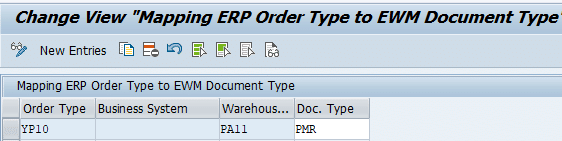
This table is straightforward but foundational. Let’s break down the populated fields:
a) Order Type
This is the manufacturing order type originating from SAP ERP (e.g., YP10). It can be a standard Production Order or a Process Order.
b) Warehouse Number
This designates the specific EWM warehouse number where the production supply will occur (e.g., PA11). This allows you to have different rules for different physical sites.
c) Doc. Type
This is the resulting EWM Document Type. For Advanced Production Integration, this is almost exclusively mapped to PMR (Production Material Request).
How EWM Responds When a Production Order Is Released
When an ERP planner releases Production Order YP10 for warehouse PA11, EWM intercepts this signal and instantly generates a PMR header document to manage the shop floor request.
3.2 The Item Level: Mapping ERP Order Types to EWM Item Types
While the header mapping is simple, the “Mapping ERP Order Type to EWM Item Type” table is where the real supply chain magic happens. This table dictates exactly how individual components within the Bill of Materials (BOM) are handled.
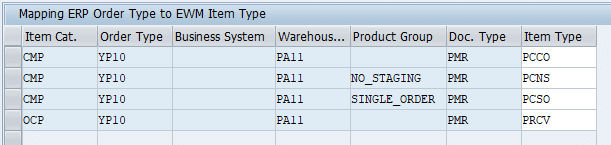
Let’s decode the critical fields:
a) Item Cat. (ERP Item Category)
This defines the nature of the component in ERP. For example, CMP represents a standard consumption component, while OCP represents an output component or co-product.
b) Order Type & Warehouse
These tie the item rules back to the specific order YP10 and warehouse PA11.
c) Product Group
This is the “secret weapon” for advanced mapping. It acts as a differentiating attribute passed from the material master, allowing you to split identical item categories into completely different EWM warehouse processes.
d) Doc. Type
Ties back to the EWM PMR document.
e) Item Type
This is the final resulting EWM Item Type (e.g., PCCO, PCNS, PCSO, PRCV) which ultimately determines your Warehouse Process Type (WPT) and staging method.
3.3 Practical Scenarios: Driving Staging Strategies
By looking at the configuration table, we can see four distinct business scenarios mapped flawlessly. Here is how they work in the real world:
Scenario 1: Cross-Order Staging (PCCO)
- The Setup: Item Category
CMPwith a blank Product Group maps to EWM Item TypePCCO. - The Business Case: For standard, high-volume components (like screws or basic packaging), you do not want to pick them for every single production order.
PCCOtriggers Cross-Order Staging, meaning EWM will look at the total aggregate demand for multiple orders and trigger replenishment to the Production Supply Area (PSA) in bulk (e.g., full pallets).
Scenario 2: No Staging / Direct Consumption (PCNS)
- The Setup: Item Category
CMPcombined with the Product GroupNO_STAGINGmaps toPCNS. - The Business Case: Think of massive silos of liquid or bulk materials that are permanently piped to the manufacturing line. The warehouse does not need to execute picking tasks for these. Mapping them to
PCNStells EWM, “Do not create staging tasks; simply wait for the production team to record consumption.”
Scenario 3: Single-Order Staging (PCSO)
- The Setup: Item Category
CMPcombined with the Product GroupSINGLE_ORDERmaps toPCSO. - The Business Case: For highly specific, expensive, or serialized components (like a custom engine block for a specific vehicle), you must stage the exact quantity required for one specific order.
PCSOtriggers EWM to create picking tasks precisely linked to that single manufacturing order, preventing mixing at the PSA.
Scenario 4: Production Receipt (PRCV)
- The Setup: Item Category
OCP(Output Component) maps toPRCV. - The Business Case: The PMR isn’t just for sending goods to production; it handles what comes back. When the manufacturing process is finished, or if a co-product is generated, the
PRCVitem type tells EWM to expect an inbound receipt from the shop floor, ready to be put away into the final storage bins.
With the document‑flow layer configured, your S/4HANA and EWM systems can now exchange inbound and outbound delivery documents seamlessly. You have established the full end‑to‑end flow for warehouse requests, tasks, and confirmations. The final step in this series is to configure the additional settings required for decentralized EWM scenarios.
Continue to Part‑6 to complete the final adjustments for decentralized EWM on S/4HANA.
Running decentralized EWM? Then you’re not done yet.
Part 6 covers the extra steps that are critical for decentralized EWM scenarios on S/4HANA.
Continue to Part 6: Decentralized EWM Final Steps →4. FAQ
If the Business System field is left blank in the configuration, the system treats that entry as a generic default. During the read access sequence, the system first looks for an entry that matches both the ERP document type and the specific sending business system. If no specific match is found, it falls back to the blank (generic) entry.
If the system encounters multiple potential matches for an item type mapping (non-unique access), it cannot make an automatic decision. In this scenario, the enterprise management system (ERP) must transmit the specific document or item type during message processing as the definitive resolution. Without this transmission or a unique mapping via the 5-step access sequence, the system will fail to generate the delivery item.
Catch Weight (CW) mapping requires the “CW Product” flag to be set within the item type mapping configuration. The system prioritizes entries with the CW Product flag in the initial steps of the access sequence (steps a through d) to ensure weight-relevant materials are assigned to appropriate CW-enabled item types in EWM before falling back to standard ERP-to-EWM item mapping.