
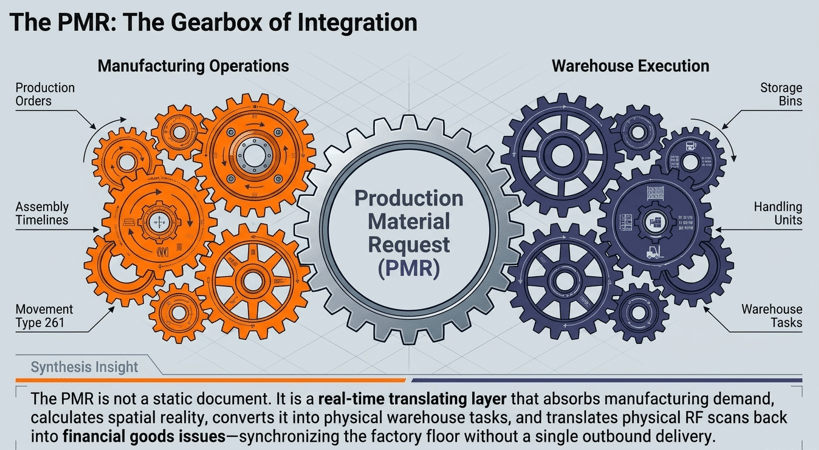
Advanced Production Integration (API) in SAP EWM replaces traditional delivery-based workflows with the Production Material Request (PMR). By leveraging the PMR, warehouses gain real-time visibility into manufacturing requirements, enabling automated staging and precise inventory control. This architectural shift is essential for high-velocity manufacturing and shop-floor automation.
Key Takeaway: The PMR acts as the central digital thread connecting ERP production orders to EWM warehouse execution.
1. The Evolution of SAP EWM Production Integration
The transition to SAP S/4HANA and the subsequent digital transformation of supply chains have shifted the focus from siloed operations to seamless integration. In earlier iterations, production integration relied heavily on delivery documents, which often created a lag between manufacturing needs and warehouse execution.
With Advanced Production Integration, SAP EWM introduces a more robust framework. By shifting to a model centered on the Production Material Request (PMR), organizations can achieve a synchronized flow of materials. This setup allows for greater flexibility in staging, clearer visibility into component availability, and a more responsive digital supply chain.
2. Foundation: Defining the Production Material Request (PMR)
The PMR is the core document within SAP EWM representing manufacturing requirements. It is a warehouse-internal document that does not rely on ERP delivery generation, allowing for more agile staging.
2.1 Defining Document Types
Path: SCM Extended Warehouse Management -> Extended Warehouse Management -> Goods Issue Process -> Production Material Request -> Define Document Types for Production
| Field Name | User Action and Values |
| Document Type | PMR |
| Doc. category | PWR |
| Description | Production Material Request |
| Ret. Period | 300 |
| Int.No.RngeInt. | 01 |
| Action Profile | /SCWM/PWR_01 |
| Status Profile | /SCWM/PWR |
| Date Profile | /SCWM/PWR |
| Qty. Offset Prf | /SCWM/PWR |
| RefDocCat Prof | /SCWM/PWR |
| Process Profile | /SCWM/PWR |
2.2 Item Type Configuration
Item types define how specific components are handled within the PMR framework. Path: SCM Extended Warehouse Management -> Extended Warehouse Management -> Goods Issue Process -> Production Material Request -> Define Item Types for Production
| Item Type | Item Category | Description | Status Profile | Qty. Offset Prf | Date Profile | Process Profile |
| PCCO | CMP | Component Cross-Order Parts | /SCWM/PWR_CMP_CO | /SCWM/PWR_CMP_CO | /SCWM/PWR_CMP | /SCWM/PWR_CMP |
| PCNS | CMP | Component Non-Staging | /SCWM/PWR_CMP_CO | /SCWM/PWR_CMP_CO | /SCWM/PWR_CMP | /SCWM/PWR_CMP |
| PCSO | CMP | Component Single-Order Parts | /SCWM/PWR_CMP_SO | /SCWM/PWR_CMP_SO | /SCWM/PWR_CMP | /SCWM/PWR_CMP |
| PRCV | OCP | Receiving Product | /SCWM/PWR_OCP | /SCWM/PWR_OCP | [Empty] | [Empty] |
2.3 Allowed Item Types
Path: SCM Extended Warehouse Management -> Extended Warehouse Management -> Goods Issue Process -> Production Material Request -> Define Allowed Item Types for Production
| Document Type | Item Type |
| PMR | PCCO |
| PMR | PCNS |
| PMR | PCSO |
3. Warehouse Process Management: WPTs and Determination
Warehouse Process Types (WPT) govern the technical execution of the movements.
The Warehouse Process Type (WPT) is the functional “engine room” of EWM. While the PMR tells the system what is needed, the WPT dictates how it gets there. Configuring WPTs for production requires a sophisticated understanding of quantity rounding, Handling Unit (HU) behavior, and process flow.
3.1 Warehouse Process Type (WPT) Configuration
The table below summarizes the critical configuration for the three primary WPTs in our advanced scenario:
| Configuration Attribute | WPT Y220 (Single-Order) | WPT Y320 (Cross-Order) | WPT Y313 (Crate Part) |
| PMR Item Type Mapping | PCSO | PCCO | N/A (No Staging Trigger) |
| Quantity Rounding | Round Down WT Qty to Single Unit | Round Up WT Qty to a Multiple | N/A |
| HU Propose Logic | Source HU as Destination HU | Source HU as Destination HU | N/A |
| Storage Process | Standard | Select HU W/O Storage Process | No Staging Trigger |
| Primary Source Type | Y051 (Narrow Aisle) | Y011 (General) | Y011 (General) |
Path: SCM Extended Warehouse Management -> Extended Warehouse Management -> Cross-Process Settings -> Warehouse Task -> Define Warehouse Process Type
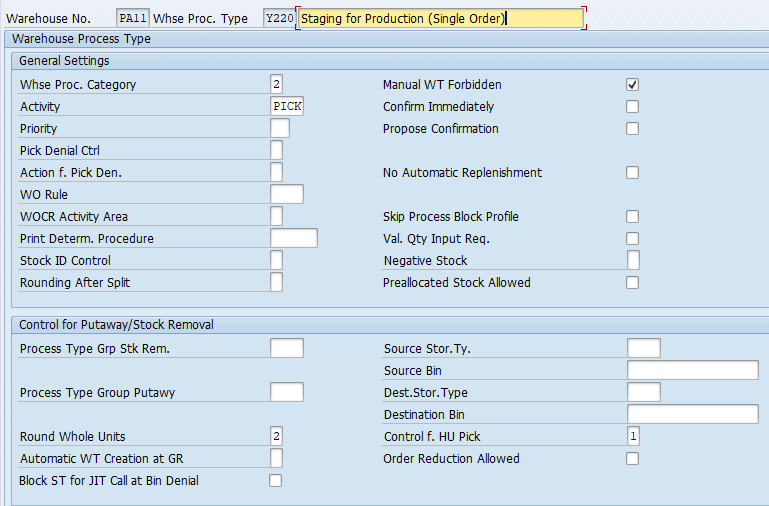
a) WPT Y220 (Single-Order Staging)
We have configured WPT Y220 for Single order staging as per below Screenshot
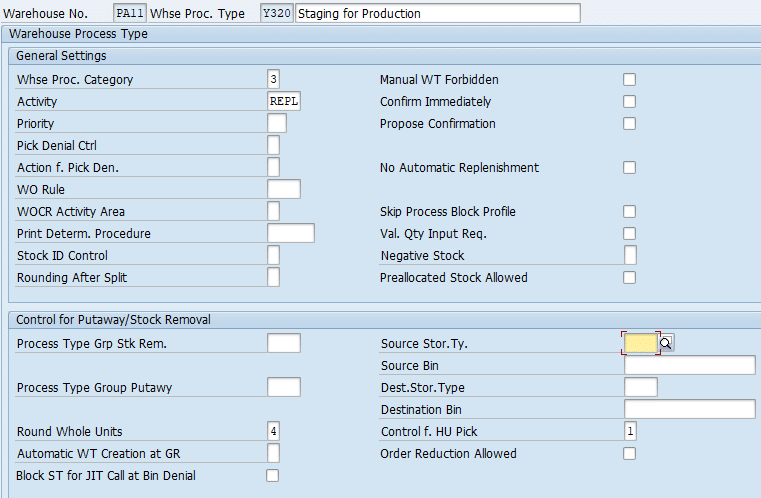
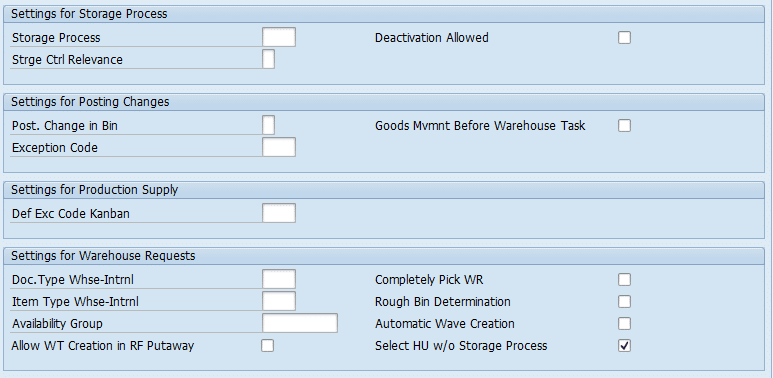
b) WPT Y320 (Cross-Order Staging)
Configure WPT Y320 for Cross-Order Staging as per below screenshot
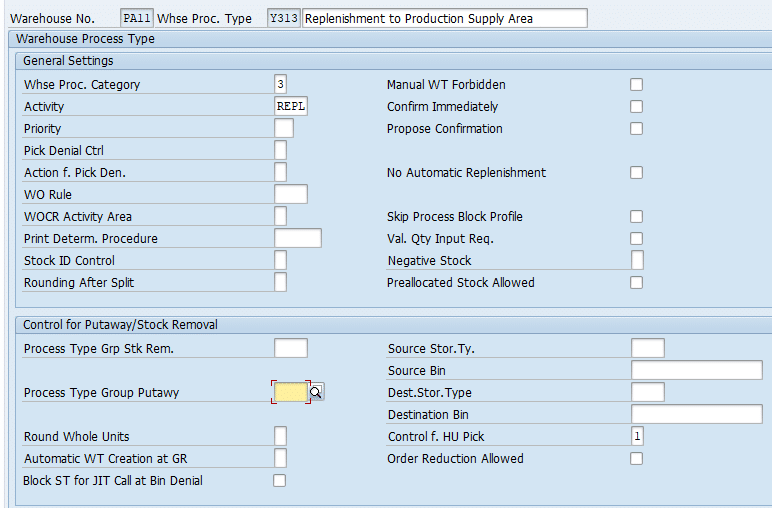
c) WPT Y313 (Crate Part Staging)
Configure WPT Y313 for Crate part Staging as per below screenshot
3.2 Warehouse Process Type (WPT) Determination Logic
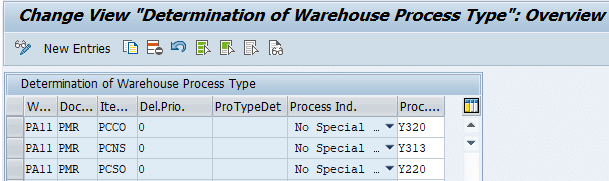
Warehouse Process Type Y220 will be configured for Single order Staging, so PMR having the Item type as Single order staging i.e., “PCSO” will determine the warehouse Process Type as Y220.
Warehouse Process Type Y320 will be configured for Cross order Staging, so PMR having the Item type as cross order staging i.e., “PCCO” will determine the warehouse Process Type as Y320.
Warehouse Process Type Y313 will be configured for Crate part replenishment so the item having staging method as “No Staging” meaning Crate part replenishment will be done through warehouse process type as Y313.
Path: SCM Extended Warehouse Management -> Extended Warehouse Management -> Cross-Process Settings -> Warehouse Task -> Determine Warehouse Process Type
| Whse No. | Doc. Type | Item Type | Process Ind. | Whse Proc. Type |
| PA11 | INBM | [Empty] | No Special Process | Y116 |
| PA11 | PMR | PCCO | No Special Process | Y320 |
| PA11 | PMR | PCNS | No Special Process | Y313 |
| PA11 | PMR | PCSO | No Special Process | Y220 |
As stated above in the table, we have configured the determination of all the three warehouse process types for staging.
4. Warehouse Structure Configuration Related to Advance Production Integration
The physical layout must support the specific roles of staging and goods receipt.
4.1 Storage Type Configuration
First we will configure all the storage type related to the end to end process of advance production Integration
- Y061: Production Supply Storage Type
- Y011: Source for Cross Order & Crate Part Staging
- Y051: Source for Single Order Staging
Path: SCM Extended Warehouse Management -> Extended Warehouse Management -> Master Data -> Define Storage Type
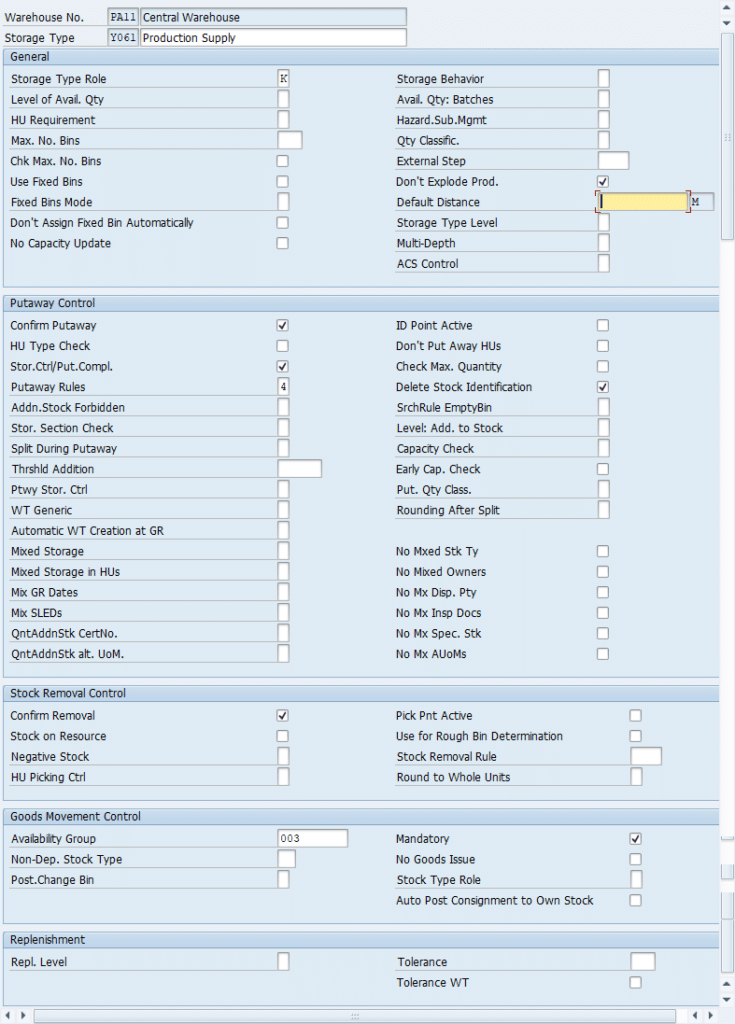
a) Production Storage Type Y061 Configuration
In SAP EWM Advanced Production Integration, the Production Storage Type is the core engine that controls how materials flow from the warehouse to the shop floor. It defines where components are staged, how they are consumed, and how real‑time replenishment is triggered.
In short, the Production Storage Type is the heart of API‑based production supply, enabling faster staging, lean manufacturing, and high‑performance digital shop‑floor execution.
We have configured Y061 as our production storage type
Because all materials will be issued from Storage Types Y011 and Y051 to the PSA , their configuration directly influences the accuracy, speed, and cost‑efficiency of the entire staging process.
Now, let’s configure both source storage types step‑by‑step to ensure optimal material flow and error‑free staging.
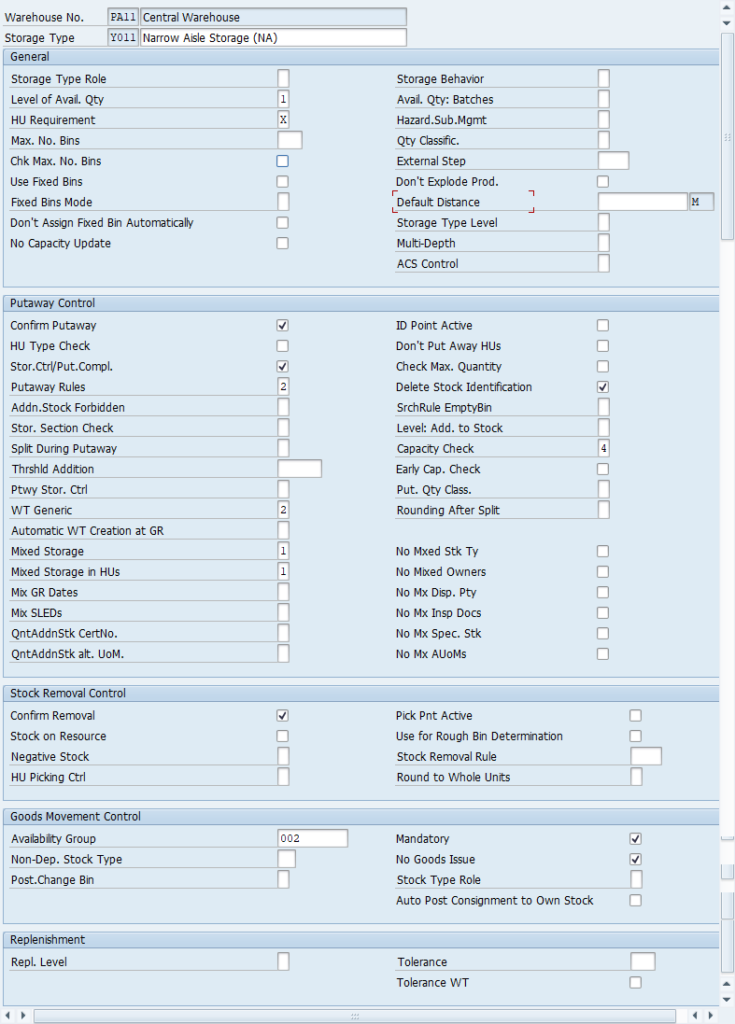
b) Configuration of Storage Type Y011 (Source for Cross Order & Crate Part Staging)
We have Configured Storage Type Y011 used for Source storage type for Cross Order & Crate Part Staging as per screenshot below.
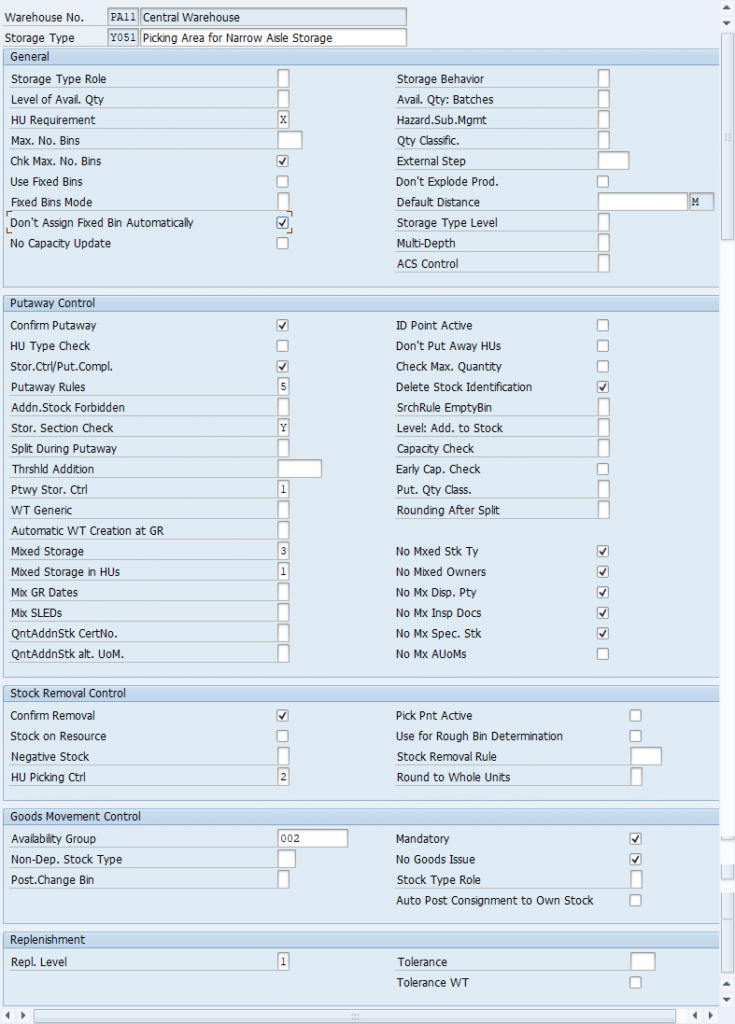
c) Configuration of Storage Type Y051 (Source for Single Order Staging)
We have Configured Storage Type Y051 used for Source storage type for Single Order Staging as per screenshot below
d) Storage Bin Creation
We will first create storage bin structure, based on which we will create the storage bin through “/SCWM/LS10”
Path: SCM Extended Warehouse Management -> Extended Warehouse Management -> Storage Bins -> Define Storage Bin Structure
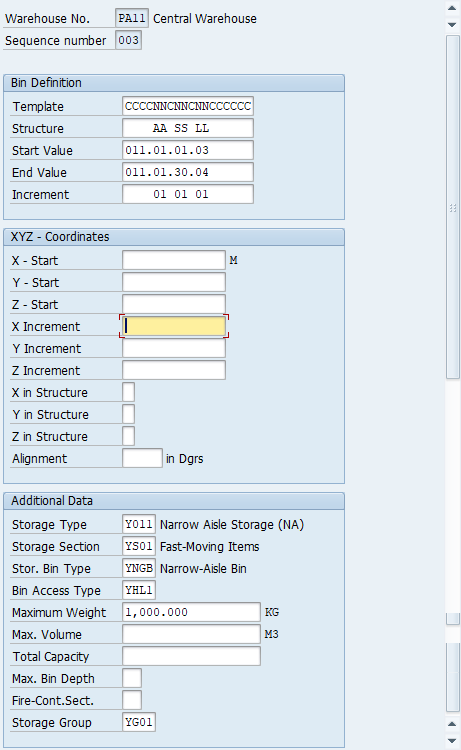
Note: We have configured Storage BIN Type as “YNGB” & BIN access Type as “YHL1” through below path
SCM Extended Warehouse Management -> Extended Warehouse Management -> Storage Bins -> Define Storage Bin Types
SCM Extended Warehouse Management -> Extended Warehouse Management -> Storage Bins -> Define Bin Access Types
4.2 Storage Section Configuration
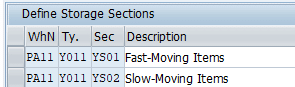
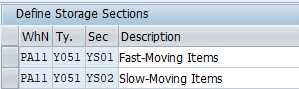
Configure the below storage sections as per our staging storage types.
4.3 Removal Strategy Configuration for Production Staging
In a high-performing warehouse, the logical configuration must mirror the physical layout. Advanced Production Integration uses Storage Type Search Sequence YPQ2 to govern the removal of stock.
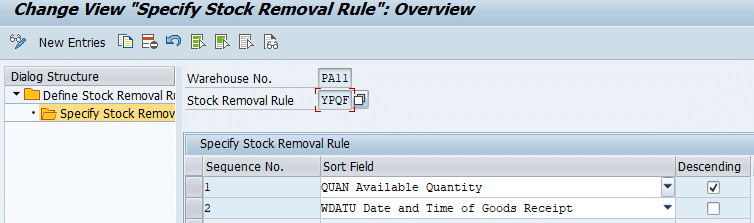
a) Specify Stock Removal Rules
This configuration defines the sequence in which the quants found should be sorted. Configured YPQF stock removal rule.
Path: SCM Extended Warehouse Management -> Extended Warehouse Management -> Goods Issue Process -> Strategies -> Specify Stock Removal Rules
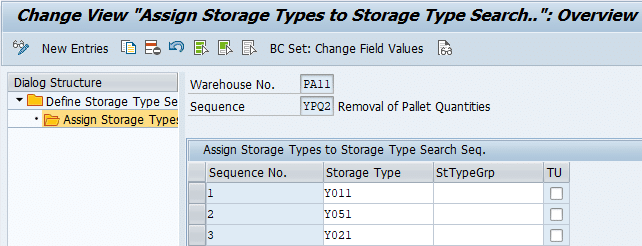
b) Storage Type Search Sequence for Production Staging
We have configured YPQ2 Storage Type Search Sequence for Production Staging and assigned our target storage type Y011 & Y051 for stock removal to it
Path: SCM Extended Warehouse Management -> Extended Warehouse Management -> Goods Issue Process -> Strategies -> Determine Storage Type Search Sequence for Stock Removal
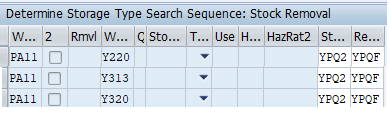
c) Determine Storage Type Search Sequence for Stock Removal
Here we will specify the storage type search for the storage type search sequence during stock removal.
Path: SCM Extended Warehouse Management -> Extended Warehouse Management -> Goods Issue Process -> Strategies -> Determine Storage Type Search Sequence for Stock Removal
4.4 Activity Areas & Sorting
We have defined our storage type as activity area
Path: SCM Extended Warehouse Management -> Extended Warehouse Management -> Master Data -> Activity Areas -> Define Activity Areas
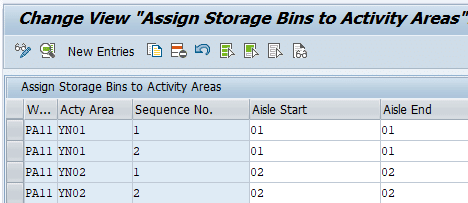
We have defined Activity area YN01 & YN02.
After generating We have assigned the BINs to our activity area.
All the BINs in aisle 01 in the storage type Y011 & Y051 are assigned to the activity area YN01.
All the BINs in aisle 02 in the storage type Y011 & Y051 are assigned to the activity area YN02.
Note
After generating the storage BINs in the storage type Y011 & Y051 , please sort them with the transaction “/SCWM/SBST”.
5. Optimizing Execution: Warehouse Orders & Replenishment
Efficiency is achieved through logical task grouping (WOCR) and automated replenishment triggers.
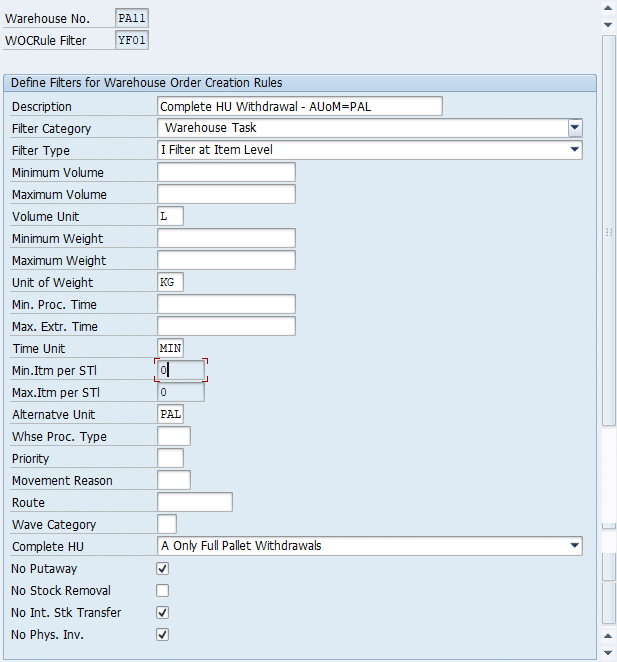
5.1 Define Filters for Warehouse Order Creation Rules
Here we define Filters for the warehouse order creation rules where we define whether warehouse order creation uses a rule to process a warehouse task. Warehouse order creation uses the filters on all warehouse tasks to decide which WT it should process.
Path: SCM Extended Warehouse Management -> Extended Warehouse Management -> Cross-Process Settings -> Warehouse Order -> Define Filters for Warehouse Order Creation Rules
5.2 Define Limit for Warehouse Order Creation Rules
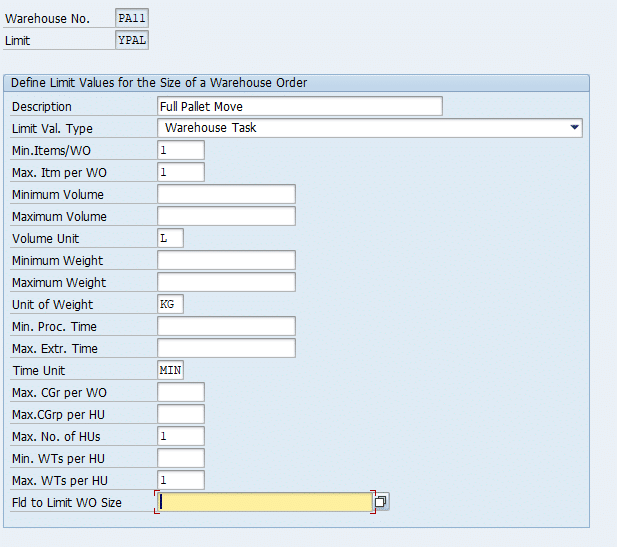
In this configuration we define the size of a warehouse order. Means we restrict the number of items in the warehouse order.
For our WOCR we have configured LIMIT as “YPAL”
Path: SCM Extended Warehouse Management -> Extended Warehouse Management -> Cross-Process Settings -> Warehouse Order -> Define Limit Values for the Size of a Warehouse Order
5.3 WOCR Configuration
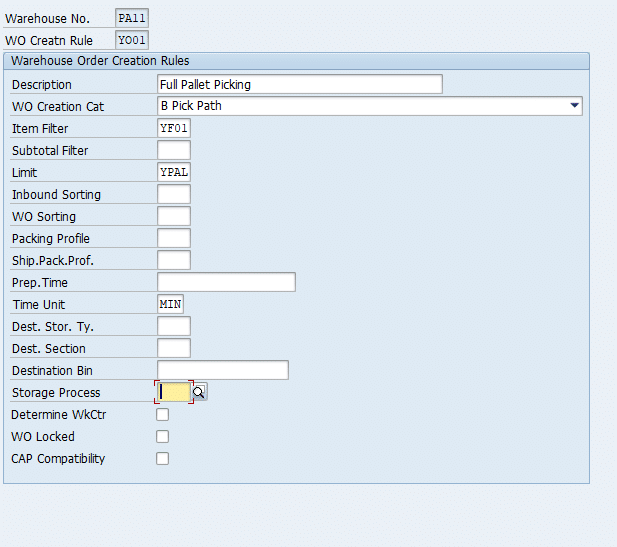
We have created below WOCR for our Activity Areas
- WOCR “Y001” for Activity Area “YN01” & Activity “PICK”
- WOCR “Y001” for Activity Area “YN01” & Activity “REPL”
- WOCR “Y001” for Activity Area “YN02” & Activity “PICK”
- WOCR “Y001” for Activity Area “YN02” & Activity “REPL”
Path: SCM Extended Warehouse Management -> Extended Warehouse Management -> Cross-Process Settings -> Warehouse Order -> Define Creation Rule For Warehouse Orders
5.4 WOCR Determination
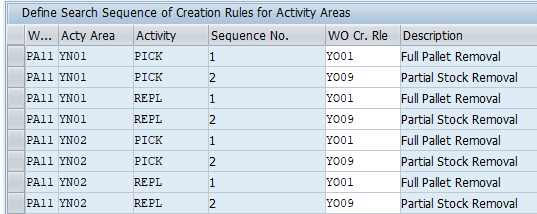
In this configuration, we define the search sequence of warehouse order creation rules as per activity area. We assign one or more warehouse order creation rules to each activity area as per the sequence defined.
Please go to WPT configuration HERE and check the ACTIVITY assigned to every WPT
- WPT Y220 (Single Order Staging) has the activity as “PICK”
- WPT Y320 (Cross Order Staging) has the activity as “REPL”
- WPT Y313 (Crate Parts Staging) has the activity as “REPL”
Note down this as these will be used further in WOCR determination.
Path: SCM Extended Warehouse Management -> Extended Warehouse Management -> Cross-Process Settings -> Warehouse Order -> Define Search Sequence of Creation Rules for Activity Areas
5.5 Replenishment Strategy
Here we activate replenishment for each storage type. Since Crate Part staging is a replenishment so we need to activate it for our target storage type i.e. for production storage type Y061
Path: SCM Extended Warehouse Management -> Extended Warehouse Management -> Internal Warehouse Processes -> Replenishment Control -> Activate Replenishment Strategies in Storage Types For Whse PA11, Storage Type Y061, assign Strategy 5 (Crate Parts Replenishment) and WPT Y313.
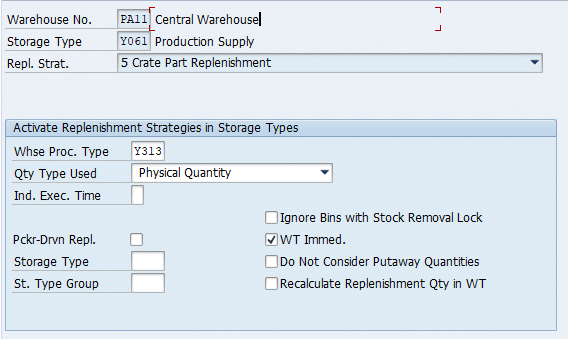
Implementation Note: The flag “Do not consider put away quantity” must remain unchecked. This ensures the system accounts for stock already in transit to the PSA, preventing over-replenishment.
6. Resource Management: RF Queues and Mobile Execution
RF queues organize work for mobile users based on the physical area and activity type.
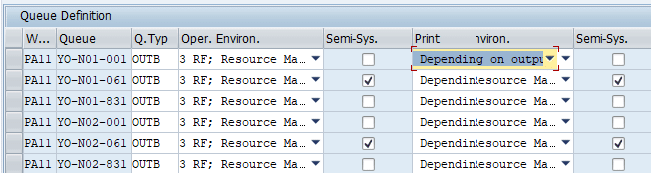
6.1 Queue Definition
Here we define the queues. Queues influence warehouse order selection for execution.
Path: SCM Extended Warehouse Management -> Extended Warehouse Management -> Cross-Process Settings -> Resource Management -> Define Queues -> Define Queues
We have defined below queues for the production staging
6.2 Queue Determination Criteria
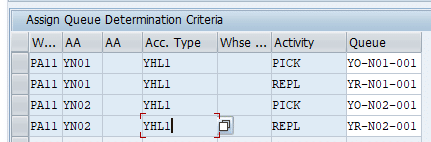
Queues are determined based on one or more of the following parameters:
- Source Activity Area
- Destination Activity Area
- Bin Access Type
- Warehouse Process Type
Path: SCM Extended Warehouse Management -> Extended Warehouse Management -> Cross-Process Settings ->Resource Management -> Define Queues -> Define Queue Determination Criteria
7. Stock Determination Configuration
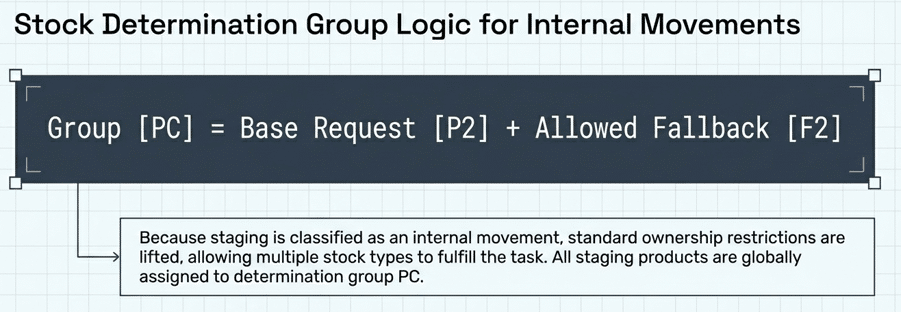
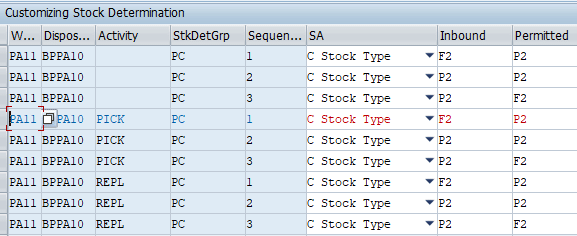
Once the system knows where to look (the storage type), it needs to know what it is allowed to pick. This is governed by the Stock Determination Group “PC”. This configuration is assigned to all production components and acts as the final gatekeeper for stock selection.
7.1 The Strategic Inclusion of F2 Stock
A nuance of this setup is the inclusion of F2 stock types within the P2 stock attribute scenario. In SAP EWM, stock types represent the status of the material (e.g., F1 for unrestricted in the warehouse, F2 for unrestricted at the plant). By allowing F2 stock to be considered during stock determination for the “PC” group, we provide the system with maximum flexibility.
7.1.1 Maintain Stock Determination Groups
We maintain a stock determination groups for our warehouse number. This stock determination group is assigned to the product.
For our products used for advance production integration, we have maintained a valid stock determination to perform stock determination.
Path: SCM Extended Warehouse Management -> Extended Warehouse Management -> Cross-Process Settings ->Stock Determination -> Maintain Stock Determination Groups

7.1.2 Configure Stock Determination
Here we configure a stock determination, so that you staging process also access stock types F2.
8. Master Data & Product Grouping for Production Supply
Product groups allow EWM to differentiate between staging strategies (e.g., cross-order vs. single-order) at the material level.
Path: SCM Extended Warehouse Management -> SCM Basis -> Master Data -> Product -> Product Groups -> Define Product Group Types
- ProdGrType: YP (Description: Production Supply)
Path: SCM Extended Warehouse Management -> SCM Basis -> Master Data -> Product -> Product Groups -> Define Product Groups
| ProdGr Type | Product Group | Description |
| YP | CROSS_ORDER | Cross-Order Staging |
| YP | NO_STAGING | Non-Staging Relevant |
| YP | SINGLE_ORDER | Single-Order Staging |
Implementation Note: These values must be assigned in the Product Master on the Properties 2 tab. This allows the system to determine the correct EWM Item Type during the interface handshake.
9. Bridging the Gap: SAP ERP and EWM Interface Configuration
Ensuring a seamless “handshake” between S/4HANA ERP and EWM is critical for the automated creation of PMRs.
9.1 Technical Mapping
Path: SCM Extended Warehouse Management -> Extended Warehouse Management -> Interfaces -> ERP Integration -> Production -> Map SAP ERP Order Type to SAP EWM Document Type
| Order Type | Warehouse Number | Document Type |
| YBM1 | PA11 | PMR |
Path: SCM Extended Warehouse Management -> Extended Warehouse Management -> Interfaces -> ERP Integration -> Production -> Map SAP ERP Order Type to SAP EWM Item Type
| Item Cat. | Order Type | Whse Number | Product Group | Doc Type | Item Type |
| CMP | YBM1 | PA11 | [Empty] | PMR | PCCO |
| CMP | YBM1 | PA11 | NO_STAGING | PMR | PCNS |
| CMP | YBM1 | PA11 | SINGLE_ORDER | PMR | PCSO |
| OCP | YBM1 | PA11 | [Empty] | PMR | PRCV |
9.2 ERP-Side Settings
Let’s have a look the ERP/S4 side settings in the detail
9.2.1 Production Scheduling Profile (Transaction OPKP):
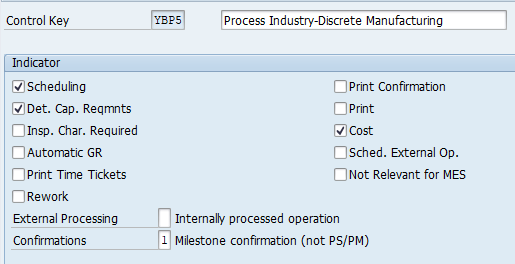
In the control key, you set a number of flags and keys which specify the business functions to be carried out for an operation, a phase or a secondary resource
9.2.2 Defining Control Keys (Transaction OPJ8)
In the control key, we set a number of flags and keys which specify the business functions to be carried out for an operation, a phase or a secondary resource.
For our car business operation we have defined control key as YBP5
9.2.3 Production Supervisor (Transaction OPJ9):
Assign Supervisor YBE to Plant PA10 and link to Profile YW0001.
10. FAQ Section
PCCO (Cross-Order) uses the status profile /SCWM/PWR_CMP_CO and is intended for materials staged in bulk for multiple orders. PCSO (Single-Order) uses /SCWM/PWR_CMP_SO and is specifically tied to the requirement of a single production order.
The PMR eliminates the overhead of delivery document synchronization. It provides a direct view of production requirements in EWM, allowing for advanced staging features like crate part replenishment and cross-order optimization that traditional deliveries cannot support.
This ERP-side configuration triggers the integration. By setting the “WM Request” field to “2”, the system bypasses traditional delivery creation and sends a direct request to EWM to generate a PMR.
The WPT (e.g., Y320) controls the automation of the movement, including whether the system rounds up to full units, how Handling Units are proposed, and whether manual task creation is permitted.
EWM uses Strategy 5 (Crate Parts). It monitors the PSA stock levels and, provided the “do not consider put away quantity” flag is unchecked, it calculates replenishment needs by including stock already in the process of being put away.
Use Single-Order (PCSO) when you require a direct link between a component and a specific production order for traceability or high-value control. Use Cross-Order (PCCO) to increase picking efficiency for common parts by batching the requirements of multiple orders into fewer warehouse movements.
Yes. By including F2 stock types in the Stock Determination Group “PC” configuration for the P2 attribute, you allow the system to pick unrestricted plant stock for internal staging, providing greater inventory liquidity.
11. Conclusion & Call to Action
Advanced Production Integration represents the pinnacle of warehouse-manufacturing synchronization in SAP S/4HANA. By moving to a PMR-based architecture, organizations gain the granular control needed for high-speed, automated environments. Mastering these SPRO configurations—from document types to layout-oriented controls—is the first step toward a fully realized digital supply chain.
Explore our other technical deep dives to continue your journey into SAP EWM warehouse automation and optimization.


